Detalji prilagođenih kontrola
- [Prilagođene kontrole prilikom snimanja]
- [Prilagođene kontrole prilikom reprodukcije]
- [Prilagođene kontrole/Resetovanje]
Možete prilagoditi funkcije fotoaparata na kartici [ ] u skladu sa vašim potrebama pri snimanju.
[Prilagođene kontrole prilikom snimanja]
Prilagođeni tasteri prilikom snimanja
Tasterima fotoaparata možete dodeliti često korišćene funkcije koje su vam jednostavne za korišćenje. Različite funkcije koje se koriste prilikom snimanja fotografija ili video zapisa, mogu biti dodeljene istom tasteru.
-
Odaberite kontrolu fotoaparata.
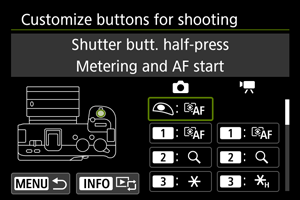
-
Odaberite funkciju koju želite da dodelite.
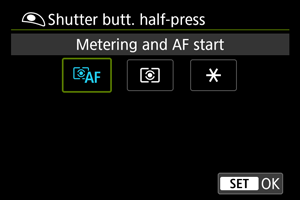
- Pritisnite
 da biste izvršili podešavanje.
 - Možete konfigurisati napredna podešavanja za funkcije označene sa [
 ] u donjem levom uglu ekrana, pritiskom na
  taster.
- Pritisnite
Napomena
- [
 ]: “Zaustavljanje AF” ili “Funkcija objektiva” dugme na super telefoto objektivima sa stabilizatorom slike.
 - Da biste izbrisali podešavanja kongifurisana preko postavke [: Customize buttons for shooting], odaberite [: Clear all customized controls].
Dostupne funkcije za prilagođavanje (snimanje video zapisa)
| ●: Podrazumevano ○: Dostupno za prilagođavanje | |||||||||||||||
 |
 |
 |
 |
 |
 |
 |
 |
 |
 |
 |
 |
 |
|
||
|---|---|---|---|---|---|---|---|---|---|---|---|---|---|---|---|
 : Pokretanje merenja svetla i autofokusa : Pokretanje merenja svetla i autofokusa |
|||||||||||||||
| ● | ○ | ○ | - | ○ | ○ | ○ | - | - | - | - | - | - | ○ | ||
 : Zaustavljanje autofokusa : Zaustavljanje autofokusa |
|||||||||||||||
| ○ | ○ | ○ | ○ | ○ | ○ | ○ | - | - | - | - | - | - | ● | ||
 : Blokada AE, zaustavljanje AF : Blokada AE, zaustavljanje AF |
|||||||||||||||
| ○ | ○ | ○ | ○ | ○ | ○ | ○ | - | - | - | - | - | - | ○ | ||
 : Odabir AF tačke : Odabir AF tačke |
|||||||||||||||
| ○ | ○ | ○ | ○ | ○ | ○ | ○ | ○ | ● | ○ | ○ | ○ | - | ○ | ||
 : Direktan odabir AF tačke : Direktan odabir AF tačke |
|||||||||||||||
| - | - | - | - | - | - | - | ○ | ○ | ○ | ○ | - | ● | - | ||
 : Postavljanje AF tačke u centar : Postavljanje AF tačke u centar |
|||||||||||||||
| ○ | ○ | ○ | ○ | ○ | ○ | ○ | ○ | ○ | ○ | ○ | ○ | - | ○ | ||
 : Početak/kraj praćenja AF tačke u celoj oblasti : Početak/kraj praćenja AF tačke u celoj oblasti |
|||||||||||||||
| ○ | ○ | ○ | ○ | ○ | ○ | ○ | ○ | ○ | ○ | ○ | ● | - | ○ | ||
 : Direktan odabir AF zone : Direktan odabir AF zone |
|||||||||||||||
| ○ | ○ | ○ | ○ | ○ | ○ | ○ | ○ | ○ | ○ | ○ | ○ | - | ○ | ||
 : Prepoznavanje oka : Prepoznavanje oka |
|||||||||||||||
| ○ | ○ | ○ | ○ | ○ | ○ | ○ | ○ | ○ | ○ | ○ | ○ | - | ○ | ||
 : Precizno prepoznavanje : Precizno prepoznavanje |
|||||||||||||||
| ○ | ○ | ○ | ○ | ○ | ○ | ○ | ○ | ○ | ○ | ○ | ○ | - | ○ | ||
 : Registrovanje prioriteta ljudi : Registrovanje prioriteta ljudi |
|||||||||||||||
| ○ | ○ | ○ | ○ | ○ | ○ | ○ | ○ | ○ | ○ | ○ | ○ | - | ○ | ||
 : Režim fokusa : Režim fokusa |
|||||||||||||||
| ○ | ○ | ○ | ○ | ○ | ○ | ○ | ○ | ○ | ○ | ○ | ○ | - | ○ | ||
 : Oivičavanje : Oivičavanje |
|||||||||||||||
| ○ | ○ | ○ | ○ | ○ | ○ | ○ | ○ | ○ | ● | ○ | ○ | - | ○ | ||
 : Fokusni vodič : Fokusni vodič |
|||||||||||||||
| ○ | ○ | ○ | ○ | ○ | ○ | ○ | ○ | ○ | ○ | ○ | ○ | - | ○ | ||
 : Registrovanje unapred podešenog fokusa : Registrovanje unapred podešenog fokusa |
|||||||||||||||
| ○ | ○ | ○ | ○ | ○ | ○ | ○ | ○ | ○ | ○ | ○ | ○ | - | ○ | ||
 : Reprodukcija unapred podešenog fokusa : Reprodukcija unapred podešenog fokusa |
|||||||||||||||
| ○ | ○ | ○ | ○ | ○ | ○ | ○ | ○ | ○ | ○ | ○ | ○ | - | ○ | ||
 : Blokada AE : Blokada AE |
|||||||||||||||
| ○ | ○ | ○ | ○ | ○ | ○ | ○ | - | - | - | - | - | - | ○ | ||
 : Blokada AE (neograničeno) : Blokada AE (neograničeno) |
|||||||||||||||
| ○ | ○ | ● | ○ | ○ | ○ | ○ | - | - | - | - | - | - | ○ | ||
 : Otpuštanje blokade AE : Otpuštanje blokade AE |
|||||||||||||||
| ○ | ○ | ○ | ○ | ○ | ○ | ○ | - | - | - | - | - | - | ○ | ||
 : Korekcija ekspozicije (držite taster i okrećite : Korekcija ekspozicije (držite taster i okrećite  ) ) |
|||||||||||||||
| ○ | ○ | ○ | - | ○ | ○ | ○ | ○ | ○ | ○ | ○ | ○ | - | ○ | ||
 : ISO brzina : ISO brzina |
|||||||||||||||
| ○ | ○ | ○ | ○ | ○ | ○ | ○ | ○ | ○ | ○ | ○ | ○ | - | ○ | ||
 : Podešavanje ISO brzine (držite taster i okrećite) : Podešavanje ISO brzine (držite taster i okrećite) |
|||||||||||||||
| ○ | ○ | ○ | - | ○ | ○ | ○ | ○ | ○ | ○ | ○ | ○ | - | ○ | ||
 : Lažne boje : Lažne boje |
|||||||||||||||
| ○ | ○ | ○ | ○ | ○ | ○ | ○ | ○ | ○ | ○ | ○ | ○ | - | ○ | ||
 : Zebra : Zebra |
|||||||||||||||
| ○ | ○ | ○ | ○ | ○ | ○ | ○ | ● | ○ | ○ | ○ | ○ | - | ○ | ||
 : Snimanje video zapisa : Snimanje video zapisa |
|||||||||||||||
| ○ | ○ | ○ | ○ | ○ | ○ | ○ | - | - | - | - | ○ | - | ○ | ||
 : Pauziranje video servo autofokusa : Pauziranje video servo autofokusa |
|||||||||||||||
| ○ | ○ | ○ | ○ | ○ | ○ | ○ | ○ | ○ | ○ | ○ | ○ | - | ○ | ||
 : Status zvuka : Status zvuka |
|||||||||||||||
| ○ | ○ | ○ | ○ | ○ | ○ | ○ | ○ | ○ | ○ | ● | ○ | - | ○ | ||
 : AF prepoznavanja objekta : AF prepoznavanja objekta |
|||||||||||||||
| ○ | ○ | ○ | ○ | ○ | ○ | ○ | ○ | ○ | ○ | ○ | ○ | - | ○ | ||
|
|
|
|
|
|
|
|
|
|
|
|
|
|
||
|---|---|---|---|---|---|---|---|---|---|---|---|---|---|---|---|
 : Postavke funkcije birača : Postavke funkcije birača |
|||||||||||||||
| ○ | ○ | ○ | ● | ○ | ○ | ○ | ○ | ○ | ○ | ○ | ○ | - | ○ | ||
 : Maksimalna osvetljenost ekrana (temperatura) : Maksimalna osvetljenost ekrana (temperatura) |
|||||||||||||||
| ○ | ○ | ○ | ○ | ○ | ○ | ○ | ○ | ○ | ○ | ○ | ○ | - | ○ | ||
 : Isključeno napajanje : Isključeno napajanje |
|||||||||||||||
| ○ | ○ | ○ | ○ | ○ | ○ | ○ | - | - | - | - | - | - | ○ | ||
 : Isključen ekran : Isključen ekran |
|||||||||||||||
| ○ | ○ | ○ | ○ | ○ | ○ | ○ | ○ | ○ | ○ | ○ | ○ | - | ○ | ||
 : Prebacivanje fokusni/kontrolni prsten : Prebacivanje fokusni/kontrolni prsten |
|||||||||||||||
| ○ | ○ | ○ | ○ | ○ | ○ | ○ | ○ | ○ | ○ | ○ | ○ | - | ○ | ||
 : Ekran brzih kontrola : Ekran brzih kontrola |
|||||||||||||||
| ○ | ○ | ○ | ○ | ○ | ○ | ○ | ○ | ○ | ○ | ○ | ○ | - | ○ | ||
 : Uvećavanje/smanjivanje : Uvećavanje/smanjivanje |
|||||||||||||||
| ○ | ● | ○ | ○ | ○ | ○ | ○ | ○ | ○ | ○ | ○ | ○ | - | ○ | ||
 : Ponovno prikazivanje slike : Ponovno prikazivanje slike |
|||||||||||||||
| ○ | ○ | ○ | ○ | ○ | ○ | ○ | ○ | ○ | ○ | ○ | ○ | - | ○ | ||
 : Uvećavanje slika tokom reprodukcije : Uvećavanje slika tokom reprodukcije |
|||||||||||||||
| ○ | ○ | ○ | ○ | ○ | ○ | ○ | ○ | ○ | ○ | ○ | ○ | - | ○ | ||
 : Prikazivanje menija : Prikazivanje menija |
|||||||||||||||
| ○ | ○ | ○ | ○ | ○ | ○ | ○ | ○ | ○ | ○ | ○ | ○ | - | ○ | ||
 : Digitalni zum : Digitalni zum |
|||||||||||||||
| ○ | ○ | ○ | ○ | ○ | ○ | ○ | ○ | ○ | ○ | ○ | ○ | - | ○ | ||
 : Otkrivanje treperenja : Otkrivanje treperenja |
|||||||||||||||
| ○ | ○ | ○ | ○ | ○ | ○ | ○ | ○ | ○ | ○ | ○ | ○ | - | ○ | ||
 : Ručno snimanje sa sprečavanjem treperenja visoke frekvencije(Tv) : Ručno snimanje sa sprečavanjem treperenja visoke frekvencije(Tv) |
|||||||||||||||
| ○ | ○ | ○ | ○ | ○ | ○ | ○ | ○ | ○ | ○ | ○ | ○ | - | ○ | ||
 : Režim boje : Režim boje |
|||||||||||||||
| ○ | ○ | ○ | ○ | ○ | ○ | ● | ○ | ○ | ○ | ○ | ○ | - | ○ | ||
 : Stil slike : Stil slike |
|||||||||||||||
| ○ | ○ | ○ | ○ | ○ | ○ | ○ | ○ | ○ | ○ | ○ | ○ | - | ○ | ||
 : Filter boje : Filter boje |
|||||||||||||||
| ○ | ○ | ○ | ○ | ○ | ○ | ○ | ○ | ○ | ○ | ○ | ○ | - | ○ | ||
 : Prilagođene slike : Prilagođene slike |
|||||||||||||||
| ○ | ○ | ○ | ○ | ○ | ○ | ○ | ○ | ○ | ○ | ○ | ○ | - | ○ | ||
 : Automatska optimizacija osvetljenosti : Automatska optimizacija osvetljenosti |
|||||||||||||||
| ○ | ○ | ○ | ○ | ○ | ○ | ○ | ○ | ○ | ○ | ○ | ○ | - | ○ | ||
 : Odabir balansa belog : Odabir balansa belog |
|||||||||||||||
| ○ | ○ | ○ | ○ | ● | ○ | ○ | ○ | ○ | ○ | ○ | ○ | - | ○ | ||
 : Promena temperature boje : Promena temperature boje |
|||||||||||||||
| ○ | ○ | ○ | ○ | ○ | ○ | ○ | ○ | ○ | ○ | ○ | ○ | - | ○ | ||
 : Korekcija balansa belog : Korekcija balansa belog |
|||||||||||||||
| ○ | ○ | ○ | ○ | ○ | ○ | ○ | ○ | ○ | ○ | ○ | ○ | - | ○ | ||
 : Blokada automatskog balansa belog : Blokada automatskog balansa belog |
|||||||||||||||
| ○ | ○ | ○ | ○ | ○ | ○ | ○ | ○ | ○ | ○ | ○ | ○ | - | ○ | ||
 : Prethodno snimanje : Prethodno snimanje |
|||||||||||||||
| ○ | ○ | ○ | ○ | ○ | ○ | ○ | ○ | ○ | ○ | ○ | ○ | - | ○ | ||
 : Automatsko okidanje pri snimanju video zapisa : Automatsko okidanje pri snimanju video zapisa |
|||||||||||||||
| ○ | ○ | ○ | ○ | ○ | ○ | ○ | ○ | ○ | ○ | ○ | ○ | - | ○ | ||
 : Digitalna IS : Digitalna IS |
|||||||||||||||
| ○ | ○ | ○ | ○ | ○ | ○ | ○ | ○ | ○ | ○ | ○ | ○ | - | ○ | ||
 : Automatski nivo : Automatski nivo |
|||||||||||||||
| ○ | ○ | ○ | ○ | ○ | ○ | ○ | ○ | ○ | ○ | ○ | ○ | - | ○ | ||
 : Stanje mirovanja: niska rezolucija : Stanje mirovanja: niska rezolucija |
|||||||||||||||
| ○ | ○ | ○ | ○ | ○ | ○ | ○ | ○ | ○ | ○ | ○ | ○ | - | ○ | ||
 : Wi-Fi/Bluetooth veza : Wi-Fi/Bluetooth veza |
|||||||||||||||
| ○ | ○ | ○ | ○ | ○ | ○ | ○ | ○ | ○ | ○ | ○ | ○ | - | ○ | ||
 : Uživo prenos : Uživo prenos |
|||||||||||||||
| ○ | ○ | ○ | ○ | ○ | ● | ○ | ○ | ○ | ○ | ○ | ○ | - | ○ | ||
 : Odabir funkcije snimanja i kartice/ direktorijuma : Odabir funkcije snimanja i kartice/ direktorijuma |
|||||||||||||||
| ○ | ○ | ○ | ○ | ○ | ○ | ○ | ○ | ○ | ○ | ○ | ○ | - | ○ | ||
|
|
|
|
|
|
|
|
|
|
|
|
|
|
||
|---|---|---|---|---|---|---|---|---|---|---|---|---|---|---|---|
 : Prebacivanje uvećanog prikaza snimanja : Prebacivanje uvećanog prikaza snimanja |
|||||||||||||||
| ○ | ○ | ○ | ○ | ○ | ○ | ○ | ○ | ○ | ○ | ○ | ○ | - | ○ | ||
 : Nema funkciju (onemogućeno) : Nema funkciju (onemogućeno) |
|||||||||||||||
| ○ | ○ | ○ | ○ | ○ | ○ | ○ | ○ | ○ | ○ | ○ | ○ | ○ | ○ | ||
Dostupne funkcije za prilagođavanje (snimanje fotografija)
| ●: Podrazumevano ○: Dostupno za prilagođavanje | |||||||||||||||||
 |
|
|
|
|
|
|
|
|
|
|
|
|
|
|
|||
|---|---|---|---|---|---|---|---|---|---|---|---|---|---|---|---|---|---|
| : Pokretanje merenja svetla i autofokusa |
|||||||||||||||||
| ● | ● | ○ | ○ | - | ○ | ○ | ○ | - | - | - | - | - | - | ○ | |||
| : Zaustavljanje autofokusa |
|||||||||||||||||
| - | ○ | ○ | ○ | ○ | ○ | ○ | ○ | - | - | - | - | - | - | ● | |||
| : Blokada autofokusa, Zaustavljanje autofokusa |
|||||||||||||||||
| - | ○ | ○ | ○ | ○ | ○ | ○ | ○ | - | - | - | - | - | - | ○ | |||
| : Odabir AF tačke |
|||||||||||||||||
| - | ○ | ○ | ○ | ○ | ○ | ○ | ○ | ○ | ● | ○ | ○ | ○ | - | ○ | |||
| : Direktan odabir AF tačke |
|||||||||||||||||
| - | - | - | - | - | - | - | - | ○ | ○ | ○ | ○ | - | ● | - | |||
| : Postavljanje AF tačke u centar |
|||||||||||||||||
| - | ○ | ○ | ○ | ○ | ○ | ○ | ○ | ○ | ○ | ○ | ○ | ○ | - | ○ | |||
| : Početak/kraj praćenja AF tačke u celoj oblasti |
|||||||||||||||||
| - | ○ | ○ | ○ | ○ | ○ | ○ | ○ | ○ | ○ | ○ | ○ | ● | - | ○ | |||
| : Direktan odabir AF zone |
|||||||||||||||||
| - | ○ | ○ | ○ | ○ | ○ | ○ | ○ | ○ | ○ | ○ | ○ | ○ | - | ○ | |||
 : Direktan odabir objekta za prepoznavanje : Direktan odabir objekta za prepoznavanje |
|||||||||||||||||
| - | ○ | ○ | ○ | ○ | ○ | ○ | ○ | ○ | ○ | ○ | ○ | ○ | - | ○ | |||
 : Pojedinačni AF : Pojedinačni AF  Servo AF Servo AF |
|||||||||||||||||
| - | ○ | ○ | ○ | ○ | ○ | ○ | ○ | ○ | ○ | ○ | ○ | ○ | - | ○ | |||
 : AF na prepoznatom objektu : AF na prepoznatom objektu |
|||||||||||||||||
| - | ○ | ○ | ○ | - | ○ | ○ | ○ | - | - | - | - | - | - | ○ | |||
 : AF sa prepoznavanjem oka : AF sa prepoznavanjem oka |
|||||||||||||||||
| - | ○ | ○ | ○ | - | ○ | ○ | ○ | - | - | - | - | - | - | ○ | |||
| : Prepoznavanje oka |
|||||||||||||||||
| - | ○ | ○ | ○ | ○ | ○ | ○ | ○ | ○ | ○ | ○ | ○ | ○ | - | ○ | |||
| : Precizno prepoznavanje |
|||||||||||||||||
| - | ○ | ○ | ○ | ○ | ○ | ○ | ○ | ○ | ○ | ○ | ○ | ○ | - | ○ | |||
| : Registrovanje prioriteta ljudi |
|||||||||||||||||
| - | ○ | ○ | ○ | ○ | ○ | ○ | ○ | ○ | ○ | ○ | ○ | ○ | - | ○ | |||
| : Režim fokusa |
|||||||||||||||||
| - | ○ | ○ | ○ | ○ | ○ | ○ | ○ | ○ | ○ | ○ | ○ | ○ | - | ○ | |||
| : Oivičavanje |
|||||||||||||||||
| - | ○ | ○ | ○ | ○ | ○ | ○ | ○ | ○ | ○ | ● | ○ | ○ | - | ○ | |||
| : Fokusni vodič |
|||||||||||||||||
| - | ○ | ○ | ○ | ○ | ○ | ○ | ○ | ○ | ○ | ○ | ○ | ○ | - | ○ | |||
| : Registrovanje unapred podešenog fokusa |
|||||||||||||||||
| - | ○ | ○ | ○ | ○ | ○ | ○ | ○ | ○ | ○ | ○ | ○ | ○ | - | ○ | |||
| : Reprodukcija unapred podešenog fokusa |
|||||||||||||||||
| - | ○ | ○ | ○ | ○ | ○ | ○ | ○ | ○ | ○ | ○ | ○ | ○ | - | ○ | |||
 : Pokretanje merenja svetla : Pokretanje merenja svetla |
|||||||||||||||||
| ○ | - | - | - | - | - | - | - | - | - | - | - | - | - | - | |||
| : Blokada AE |
|||||||||||||||||
| - | ○ | ○ | ● | ○ | ○ | ○ | ○ | - | - | - | - | - | - | ○ | |||
| : Blokada AE (neograničeno) |
|||||||||||||||||
| - | ○ | ○ | ○ | ○ | ○ | ○ | ○ | - | - | - | - | - | - | ○ | |||
| : Blokada AE (dok držite taster) |
|||||||||||||||||
| ○ | - | - | - | - | - | - | - | - | - | - | - | - | - | - | |||
| : Otpuštanje blokade AE |
|||||||||||||||||
| - | ○ | ○ | ○ | ○ | ○ | ○ | ○ | - | - | - | - | - | - | ○ | |||
| : Korekcija ekspozicije (držite taster i okrećite ) |
|||||||||||||||||
| - | ○ | ○ | ○ | - | ○ | ○ | ○ | ○ | ○ | ○ | ○ | ○ | - | ○ | |||
| : ISO brzina |
|||||||||||||||||
| - | ○ | ○ | ○ | ○ | ○ | ○ | ○ | ○ | ○ | ○ | ○ | ○ | - | ○ | |||
|
|
|
|
|
|
|
|
|
|
|
|
|
|
|
|||
|---|---|---|---|---|---|---|---|---|---|---|---|---|---|---|---|---|---|
| : Podešavanje ISO brzine (držite taster i okrećite) |
|||||||||||||||||
| - | ○ | ○ | ○ | - | ○ | ○ | ○ | ○ | ○ | ○ | ○ | ○ | - | ○ | |||
| : Postavke funkcije birača |
|||||||||||||||||
| - | ○ | ○ | ○ | ● | ○ | ○ | ○ | ○ | ○ | ○ | ○ | ○ | - | ○ | |||
| : Maksimalna osvetljenost ekrana (temperatura) |
|||||||||||||||||
| - | ○ | ○ | ○ | ○ | ○ | ○ | ○ | ○ | ○ | ○ | ○ | ○ | - | ○ | |||
| : Isključeno napajanje |
|||||||||||||||||
| - | ○ | ○ | ○ | ○ | ○ | ○ | ○ | - | - | - | - | - | - | ○ | |||
| : Isključen ekran |
|||||||||||||||||
| - | ○ | ○ | ○ | ○ | ○ | ○ | ○ | ○ | ○ | ○ | ○ | ○ | - | ○ | |||
 : Funkcija tihog zatvarača : Funkcija tihog zatvarača |
|||||||||||||||||
| - | ○ | ○ | ○ | ○ | ○ | ○ | ○ | ○ | ○ | ○ | ○ | ○ | - | ○ | |||
| : Prebacivanje fokusni/kontrolni prsten |
|||||||||||||||||
| - | ○ | ○ | ○ | ○ | ○ | ○ | ○ | ○ | ○ | ○ | ○ | ○ | - | ○ | |||
 : Pregled dubinske oštrine : Pregled dubinske oštrine |
|||||||||||||||||
| - | ○ | ○ | ○ | ○ | ○ | ○ | ○ | ○ | ○ | ○ | ○ | ○ | - | ○ | |||
 : Resetovanje odabranih stavki u Fv režimu : Resetovanje odabranih stavki u Fv režimu |
|||||||||||||||||
| - | ○ | ○ | ○ | ○ | ○ | ○ | ○ | ● | ○ | ○ | ○ | ○ | - | ○ | |||
 : Resetovanje Tv/Av/ : Resetovanje Tv/Av/ /ISO u Fv režimu /ISO u Fv režimu |
|||||||||||||||||
| - | ○ | ○ | ○ | ○ | ○ | ○ | ○ | ○ | ○ | ○ | ● | ○ | - | ○ | |||
| : Ekran brzih kontrola |
|||||||||||||||||
| - | ○ | ○ | ○ | ○ | ○ | ○ | ○ | ○ | ○ | ○ | ○ | ○ | - | ○ | |||
| : Uvećavanje/smanjivanje |
|||||||||||||||||
| - | ○ | ● | ○ | ○ | ○ | ○ | ○ | ○ | ○ | ○ | ○ | ○ | - | ○ | |||
| : Ponovno prikazivanje slike |
|||||||||||||||||
| - | ○ | ○ | ○ | ○ | ○ | ○ | ○ | ○ | ○ | ○ | ○ | ○ | - | ○ | |||
| : Uvećavanje slika tokom reprodukcije |
|||||||||||||||||
| - | ○ | ○ | ○ | ○ | ○ | ○ | ○ | ○ | ○ | ○ | ○ | ○ | - | ○ | |||
| : Prikazivanje menija |
|||||||||||||||||
| - | ○ | ○ | ○ | ○ | ○ | ○ | ○ | ○ | ○ | ○ | ○ | ○ | - | ○ | |||
 : Kvalitet slike : Kvalitet slike |
|||||||||||||||||
| - | ○ | ○ | ○ | ○ | ○ | ○ | ○ | ○ | ○ | ○ | ○ | ○ | - | ○ | |||
 : Podešavanje kvaliteta slike jednim dodirom na ekran : Podešavanje kvaliteta slike jednim dodirom na ekran |
|||||||||||||||||
| - | ○ | ○ | ○ | ○ | ○ | ○ | ○ | ○ | ○ | ○ | ○ | ○ | - | ○ | |||
 : Podešavanje kvaliteta slike jednim dodirom na ekran (neograničeno) : Podešavanje kvaliteta slike jednim dodirom na ekran (neograničeno) |
|||||||||||||||||
| - | ○ | ○ | ○ | ○ | ○ | ○ | ○ | ○ | ○ | ○ | ○ | ○ | - | ○ | |||
 : :  Opsecanje/Razmera fotografija Opsecanje/Razmera fotografija |
|||||||||||||||||
| - | ○ | ○ | ○ | ○ | ○ | ○ | ○ | ○ | ○ | ○ | ○ | ○ | - | ○ | |||
 : Prebacivanje između opsecanja/razmere : Prebacivanje između opsecanja/razmere |
|||||||||||||||||
| - | ○ | ○ | ○ | ○ | ○ | ○ | ○ | ○ | ○ | ○ | ○ | ○ | - | ○ | |||
 : Digitalni tele konverter : Digitalni tele konverter |
|||||||||||||||||
| - | ○ | ○ | ○ | ○ | ○ | ○ | ○ | ○ | ○ | ○ | ○ | ○ | - | ○ | |||
| : Ručno snimanje sa sprečavanjem treperenja visoke frekvencije(Tv) |
|||||||||||||||||
| - | ○ | ○ | ○ | ○ | ○ | ○ | ○ | ○ | ○ | ○ | ○ | ○ | - | ○ | |||
 : Preporučeni Tv za snimanje sa sprečavanjem treperenja visoke frekvencije : Preporučeni Tv za snimanje sa sprečavanjem treperenja visoke frekvencije |
|||||||||||||||||
| - | ○ | ○ | ○ | ○ | ○ | ○ | ○ | ○ | ○ | ○ | ○ | ○ | - | ○ | |||
| : Režim boje |
|||||||||||||||||
| - | ○ | ○ | ○ | ○ | ○ | ○ | ● | ○ | ○ | ○ | ○ | ○ | - | ○ | |||
| : Stil slike |
|||||||||||||||||
| - | ○ | ○ | ○ | ○ | ○ | ○ | ○ | ○ | ○ | ○ | ○ | ○ | - | ○ | |||
| : Filter boje |
|||||||||||||||||
| - | ○ | ○ | ○ | ○ | ○ | ○ | ○ | ○ | ○ | ○ | ○ | ○ | - | ○ | |||
| : Automatska optimizacija osvetljenosti |
|||||||||||||||||
| - | ○ | ○ | ○ | ○ | ○ | ○ | ○ | ○ | ○ | ○ | ○ | ○ | - | ○ | |||
| : Odabir balansa belog |
|||||||||||||||||
| - | ○ | ○ | ○ | ○ | ● | ○ | ○ | ○ | ○ | ○ | ○ | ○ | - | ○ | |||
|
|
|
|
|
|
|
|
|
|
|
|
|
|
|
|||
|---|---|---|---|---|---|---|---|---|---|---|---|---|---|---|---|---|---|
| : Promena temperature boje |
|||||||||||||||||
| - | ○ | ○ | ○ | ○ | ○ | ○ | ○ | ○ | ○ | ○ | ○ | ○ | - | ○ | |||
| : Balans belog prebacivanje/serijsko snimanje |
|||||||||||||||||
| - | ○ | ○ | ○ | ○ | ○ | ○ | ○ | ○ | ○ | ○ | ○ | ○ | - | ○ | |||
 : Režim zatvarača : Režim zatvarača |
|||||||||||||||||
| - | ○ | ○ | ○ | ○ | ○ | ○ | ○ | ○ | ○ | ○ | ○ | ○ | - | ○ | |||
 : Predrafalno snimanje : Predrafalno snimanje |
|||||||||||||||||
| - | ○ | ○ | ○ | ○ | ○ | ○ | ○ | ○ | ○ | ○ | ○ | ○ | - | ○ | |||
 : Okidač na dodir : Okidač na dodir |
|||||||||||||||||
| - | ○ | ○ | ○ | ○ | ○ | ○ | ○ | ○ | ○ | ○ | ○ | ○ | - | ○ | |||
 : :  Prikaz podešavanja brzine kadrova Prikaz podešavanja brzine kadrova |
|||||||||||||||||
| - | ○ | ○ | ○ | ○ | ○ | ○ | ○ | ○ | ○ | ○ | ○ | ○ | - | ○ | |||
| : Wi-Fi/Bluetooth veza |
|||||||||||||||||
| - | ○ | ○ | ○ | ○ | ○ | ○ | ○ | ○ | ○ | ○ | ○ | ○ | - | ○ | |||
| : Odabir funkcije snimanja i kartice/ direktorijuma |
|||||||||||||||||
| - | ○ | ○ | ○ | ○ | ○ | ○ | ○ | ○ | ○ | ○ | ○ | ○ | - | ○ | |||
 : Kreiranje direktorijuma : Kreiranje direktorijuma |
|||||||||||||||||
| - | ○ | ○ | ○ | ○ | ○ | ○ | ○ | ○ | ○ | ○ | ○ | ○ | - | ○ | |||
| : Nema funkciju (onemogućeno) |
|||||||||||||||||
| - | ○ | ○ | ○ | ○ | ○ | ● | ○ | ○ | ○ | ○ | ○ | ○ | ○ | ○ | |||
Registrovanje unapred podešenog fokusa/Reprodukcija unapred podešenog fokusa
Možete unapred postaviti svoje omiljene pozicije fokusa na fotoaparatu kada koristite RF ili RF-S objektive. Sačuvane pozicije unapred podešenog fokusa mogu se primeniti pritiskom na dugme tokom stanja mirovanja.
Registracija pozicije fokusa na fotoaparatu
Fokusirajte na udaljenosti fokusa koju želite da registrujete kao unapred podešeni fokus, a zatim pritisnite dugme dodeljeno funkciji [Register focus preset].
Opoziv pozicija unapred podešenog fokusa
Pritisnite dugme dodeljeno funkciji [Playback focus preset].
Napomena
- Unapred podešeni fokus je dostupan u AF i MF režimu fokusa.
- Registrovane pozicije fokusa se brišu kada promenite objektive ili kada promenite baterije fotoaparata.
Blokada automatskog balansa belog
Možete pauzirati operacije automatskog balansa belog tokom snimanja video zapisa pritiskom na dugme dodeljeno funkciji [AWB lock]. Da biste otključali blokadu, ponovo pritisnite dugme.
Funkcija okidača pri snimanju video zapisa
Možete podesiti funkcije koje se izvršavaju pritiskom na dugme okidača do kraja ili do pola tokom snimanja video zapisa.
-
Odaberite opciju.
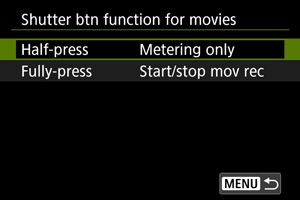
-
Pritisak do pola
Odredite funkciju koja se izvodi pritiskom na dugme okidača do pola.
-
Pritisak do kraja
Odredite funkciju koja se izvodi pritiskom na dugme okidača do kraja.
-
-
Odaberite opciju.
Opcija [Half-press]
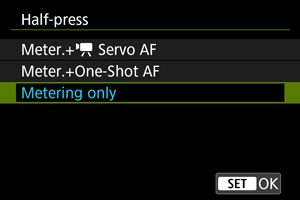
-
Merenje.+
Servo AFDok držite okidač pritisnut do pola fotoaparat će neprekidno fokusirati objekat. Kada pritisnete
 dugme, fotoaparat će fokusirati samo jednom.
 -
Merenje+Pojedinačni AF
Kada pritisnete okidač do pola, fotoaparat će fokusirati samo jednom.
-
Samo merenje
Pritiskom na okidač do pola započinje merenje. Da biste fokusirali, pritisnite
dugme.
Opcija [Fully-press]
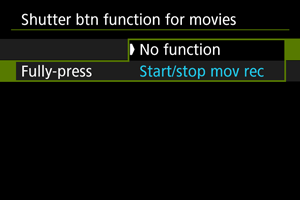
-
Sa postavkom [Fully-press] podešenom na opciju [No function] onemogućeno je snimanje video zapisa pritiskom na okidač.
-
Prilagođavanje birača/kontrolnog prstena
Često korišćene funkcije mogu se dodeliti  ,
,  i
i  biračima i
  prstenu.
-
Odaberite kontrolu fotoaparata.
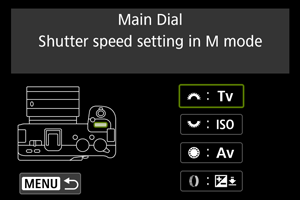
-
Odaberite funkciju koju želite da dodelite.
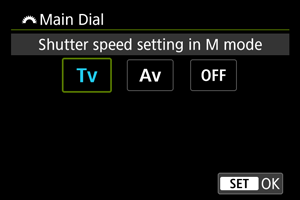
- Pritisnite da biste izvršili podešavanje.
- Možete konfigurisati napredna podešavanja za funkcije označene sa [] u donjem levom uglu ekrana, pritiskom na taster.
- Pritisnite
Napomena
- Da biste obrisali podešavanja kongifurisana preko postavke [: Customize dials/control ring], odaberite [: Clear all customized controls].
Funkcije dostupne za birače
| ●: Podrazumevano ○: Dostupno za prilagođavanje | ||||
| Funkcija | |
 |
 |
|
|---|---|---|---|---|
 : Promena brzine zatvarača (držanje tastera za merenje osvetljenja) : Promena brzine zatvarača (držanje tastera za merenje osvetljenja) |
- | - | - | ○ |
 : Promena vrednosti blende (držanje tastera za merenje osvetljenja) : Promena vrednosti blende (držanje tastera za merenje osvetljenja) |
- | - | - | ○ |
| : Podešavanje ISO brzine (držanje tastera za merenje osvetljenja) |
- | - | - | ○ |
| : Korekcija ekspozicije (držanje tastera za merenje osvetljenja) |
- | - | - | ● |
 : Odabir AF zone (držanje tastera za merenje osvetljenja) : Odabir AF zone (držanje tastera za merenje osvetljenja) |
- | - | - | ○ |
 : Stil slike (držanje tastera za merenje osvetljenja) : Stil slike (držanje tastera za merenje osvetljenja) |
- | - | - | ○ |
 : Odabir balansa belog (držanje tastera za merenje osvetljenja) : Odabir balansa belog (držanje tastera za merenje osvetljenja) |
- | - | - | ○ |
 : Odabir temperature boja (držanje tastera za merenje osvetljenja) : Odabir temperature boja (držanje tastera za merenje osvetljenja) |
- | - | - | ○ |
 : Promena brzine zatvarača : Promena brzine zatvarača |
- | - | - | ○ |
 : Promena vrednosti blende : Promena vrednosti blende |
- | - | - | ○ |
| : Podešavanje brzine zatvarača u M režimu |
● | ○ | ○ | - |
| : Podešavanje blende u M režimu |
○ | ○ | ● | - |
| : Podešavanje ISO brzine |
- | ● | ○ | ○ |
| : Korekcija ekspozicije |
- | ○ | ○ | ○ |
| : Direktan odabir AF tačke |
- | ○ | ○ | - |
 : Odabir AF zone : Odabir AF zone |
- | ○ | ○ | ○ |
| : Stil slike |
- | ○ | ○ | ○ |
| : Odabir balansa belog |
- | ○ | ○ | ○ |
 : Odabir temperature boja : Odabir temperature boja |
- | ○ | ○ | ○ |
| : Nema funkciju (onemogućeno) |
○ | ○ | ○ | ○ |
Napomena
- Birač ne može biti prilagođen u Fv režimu.
- []: Kontrolni prsten na RF objektivima i adapterima za montiranje.


 Smer okretanja u Tv/Av režimima
Možete izmeniti smer podešavanja brzine zatvarača i vrednosti blende preko birača.
Ova opcija menja smer podešavanja , i birača u M režimu i samo birača u ostalim režimima. Smer i birača u M režimu, odgovara smeru za podešavanje korekcije ekspozicije u PTvAv režimima.
 : Standardni smer
 : Obrnuti smer
 Smer okretanja u Tv/Av režimima
Prilikom podešavanja brzine zatvarača i vrednosti blende, smer okretanja RF ili RF-S objektiva i adaptera za montiranje može biti obrnut.
- : Standardni smer
- : Obrnuti smer
Prebacivanje / pri snimanju
Funkcije dodeljene glavnom biraču i brzom kontrolnom biraču 2 mogu biti obrnute.
- OFF: Onemogućeno
- ON: Omogućeno
Okidač na dodir
Možete podesiti okidač na dodir. Kada odaberete [Enable], ikona [ ] prikazana u donjem levom uglu ekrana za snimanje se menja u [] ikonu, i okidač na dodir je omogućen.
Za više informacija o okidaču na dodir, pogledajte poglavlje Snimanje sa okidačem osetljivim na dodir.
Zaključavanje kontrola
Odredite kontrole fotoaparata koje će biti zaključane kada je ova funkcija omogućena. Ova funkcija može pomoći u sprečavanju slučajnih promena podešavanja.
-
Odaberite kontrole fotoaparata za zaključavanje.
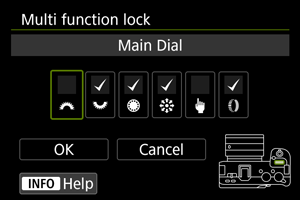
- Odaberite kontrolu fotoaparata i pritisnite da biste prikazali [
 ].
].
- Odaberite kontrolu fotoaparata i pritisnite
-
Odaberite [OK].
- Pritisnite
 dugme da biste zaključali odabrane [] kontrole fotoaparata.
- Pritisnite
Napomena
- Zvezdica “*” desno od funkcije [: Multi function lock] označava da je trenutna postavka izmenjena.
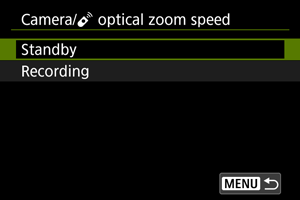
Fotoaparat/ brzina optičkog zuma
Možete podesiti brzinu optičkog zuma koja se koristi pri zumiranju pomoću poluge zuma ili pomoću bežičnog daljinskog upravljača.
Brzina zumiranja koja se koristi pri stanju mirovanja za snimanje ili pri snimanju video zapisa može se zasebno podesiti.
-
Brzina zumiranja
Podesite brzinu zumiranja.
Brzo: Pogodno za zumiranje pri stanju mirovanja.
Sporo: Pogodno za sporo zumiranje, kao pri snimanju video zapisa.
-
Nivo brzine
Podesite nivo brzine zumiranja (u odnosu na brzinu zumiranja), da biste zumirali brže ili sporije u zavisnosti od toga koliko pritiskate kontrolu zuma.
Podesite brzinu zuma u rasponu od 1–15 za brzine zuma [Fast] i [Slow].
Napomena
- Brzina zumiranja sa opcionim bežičnim daljinskim upravljačem odgovara postavci [
 ].
].
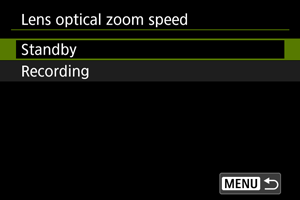
Brzina optičkog zuma objektiva
Dostupno kada koristite power zum objektiv.
Optičko zumiranje je brže ili sporije u zavisnosti od toga koliko okrećete prsten za zumiranje.
Brzina zumiranja koja se koristi pri stanju mirovanja za snimanje ili pri snimanju video zapisa može se zasebno podesiti.
-
Brzina zumiranja
Podesite brzinu zumiranja.
Brzo: Pogodno za zumiranje pri stanju mirovanja.
Sporo: Pogodno za sporo zumiranje, kao pri snimanju video zapisa.
-
Nivo brzine
Podesite nivo brzine zumiranja (u odnosu na brzinu zumiranja), da biste zumirali brže ili sporije u zavisnosti od toga koliko okrećete prsten zuma.
Podesite brzinu zuma u rasponu od 1–15 za brzine zuma [Fast] i [Slow].
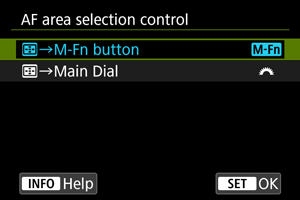
Kontrola odabira AF zone
Možete podesiti kako se menjaju metode odabira AF zone.
-
 :
:  →M-Fn dugme
Pritisnite
dugme, a zatim  dugme. Svakim pritiskom menja se AF zona.
 -
: →Glavni birač
Pritisnite
dugme, a zatim okrećite birač da biste promenili AF zonu.
Napomena
- Kada je podešeno [→Main Dial], koristite
 da biste horizontalno pomerali AF tačku.
 Osetljivost multi-birača pri odabiru AF tačke
Možete podesiti osetljivost multi-birača koja se odnosi na pozicioniranje AF tačke.
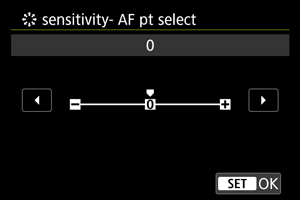
Fokusni/kontrolni prsten
U ovom meniju možete konfigurisati funkcionalnost objektiva [Fokusni/kontrolni prsten].
Objektivi bez prekidača za Fokusni/kontrolni prsten
-
FOKUS: Upotreba fokusnog prstena
Prsten radi kao fokusni prsten.
-
KONTROLA: Upotreba kontrolnog prstena
Prsten funkcioniše kao kontrolni prsten. Da biste ograničili [
 : Focus mode] na [AF], pritisnite
  dugme i dodajte kvačicu [] na [Focus mode is AF when used as a control ring].
Objektivi za koje se prikazuje ovaj meni, a koji imaju i prstenove za fokusiranje i prstenove za kontrolu
-
FOKUS: Upotreba fokusnog prstena
Nema promena u radu fokusa ili kontrolnog prstena.
-
KONTROLA: Upotreba kontrolnog prstena
Prsten za fokusiranje radi kao kontrolni prsten. Rad kontrolnog prstena je onemogućen.
Napomena
- Ovaj meni se ne prikazuje za objektive sa prekidačem prstena za fokusiranje/kontrolu. Koristite objektiv da biste konfigurisali funkcionalnost prstena za fokusiranje/kontrolu.
- Za detalje o objektivima sa prstenovima za fokusiranje i kontrolu za koje fotoaparat prikazuje ovaj meni, posetite web stranicu kompanije Canon.
- Prebacivanje je takođe moguće sa ekrana za brzu kontrolu, kada se prilagodi pomoću [
 : Quick Control customization] ili [: Quick Control customization
 ] ().
] ().
Rotacija fokusnog prstena
Možete obrnuti smer u kome se okreće fokusni prsten RF objektiva da biste prilagodili podešavanja.
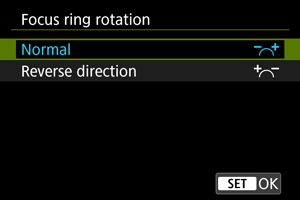
- : Standardni smer
- : Obrnuti smer
Osetljivost fokusnog prstena RF objektiva pri manuelnom fokusu
Možete podešavati osetljivost fokusnog prstena RF objektiva.
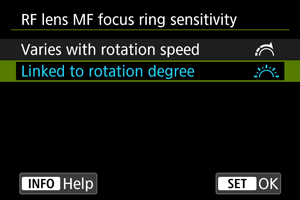
-
 : Varira sa brzinom rotacije
Osetljivost fokusnog prstena varira u zavisnosti od brzine rotacije.
-
 : Povezan sa stepenom rotacije
Fokalna pozicija se podešava na osnovu iznosa rotacije, bez obzira na brzinu rotacije.
[Prilagođene kontrole prilikom reprodukcije]
Prilagođavanje tastera za reprodukciju
Tasterima fotoaparata možete dodeliti često korišćene funkcije za reprodukciju koje su vam jednostavne za korišćenje.
-
Odaberite kontrolu fotoaparata.
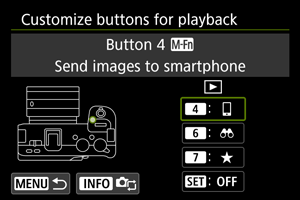
-
Odaberite funkciju koju želite da dodelite.
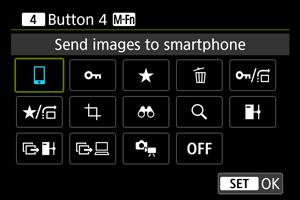
- Pritisnite da biste izvršili podešavanje.
- Možete konfigurisati napredna podešavanja za funkcije označene sa [] u donjem levom uglu ekrana, pritiskom na taster.
- Pritisnite
Napomena
- Da biste izbrisali podešavanja kongifurisana preko postavke [: Customize buttons for playback], odaberite [: Clear all customized controls].
Dostupne funkcije za prilagođavanje
| ●: Podrazumevano ○: Dostupno za prilagođavanje | ||||
| Funkcija | |
|
|
|
|---|---|---|---|---|
 : Zaštita : Zaštita |
○ | ○ | ○ | ○ |
 : Rangiranje : Rangiranje |
○ | ○ | ● | ○ |
 : Brisanje slika : Brisanje slika |
○ | ○ | ○ | ○ |
/ : Zaštita (preskakanje slika preko/ : Zaštita (preskakanje slika preko/ +) +) |
○ | ○ | ○ | ○ |
| /: Rangiranje (preskakanje slika preko/+) |
○ | ○ | ○ | ○ |
 : Opsecanje : Opsecanje |
○ | ○ | ○ | ○ |
 : Pretraga slika : Pretraga slika |
○ | ● | ○ | ○ |
| : Uvećavanje/smanjivanje |
○ | ○ | ○ | ○ |
 : Slanje slika na pametni telefon : Slanje slika na pametni telefon |
● | ○ | ○ | ○ |
 : Prenos slika na FTP server : Prenos slika na FTP server |
○ | ○ | ○ | ○ |
 : Odabir/prenos slika (FTP server) : Odabir/prenos slika (FTP server) |
○ | ○ | ○ | ○ |
 : Odabir/prenos slika (EOS Utility) : Odabir/prenos slika (EOS Utility) |
○ | ○ | ○ | ○ |
 : Isto kao snimanje sa prilagođenim tasterima : Isto kao snimanje sa prilagođenim tasterima |
○ | ○ | - | - |
| : Nema funkciju (onemogućeno) |
○ | ○ | ○ | ● |
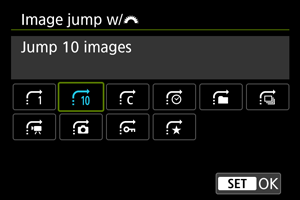
Preskakanje slika preko/
Da biste podesili način na koji fotoaparat preskače slike, okrećite birač na ekranu za reprodukciju pri prikazu jedne slike.
Napomena
- Sa opcijom [Jump images by the specified number], okrećite birač da biste odabrali broj slika koje želite da preskočite.
- Sa opcijom [Display by image rating], okrećite birač da biste odabrali ocenu (). Ako odaberete biće prikazane sve ocenjene slike tokom pregleda.
- Takođe, metod preskakanja možete promeniti horizontalnim pritiskom na na ekranu za reprodukciju pri prikazu jedne slike.
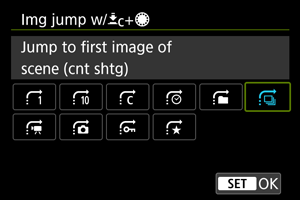
Preskakanje slika preko/ +
+
Da biste podesili način na koji fotoaparat preskače slike, okrećite birač dok pritiskate dugme dodeljeno funkciji [/] [/] na ekranu za reprodukciju pri prikazu jedne slike.
Napomena
- Ovu funkciju možete konfigurisati prilikom dodeljivanja funkcije [/] [/] tasteru u okviru postavke [: Customize buttons for playback] ().
- Sa opcijom [Jump images by the specified number], okrećite birač da biste odabrali broj slika koje želite da preskočite.
- Sa opcijom [Display by image rating], okrećite birač da biste odabrali ocenu (). Ako odaberete biće prikazane sve ocenjene slike tokom pregleda.
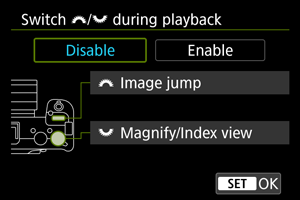
Prebacivanje / tokom reprodukcije
Možete promeniti funkcije dodeljene ovim biračima na način kako se koriste na ekranu za reprodukciju.
-
Onemogućeno
Dodeljuje [Image jump] funkciju
biraču i [Magnify/Index view] funkciju biraču. -
Omogućeno
Dodeljuje [Magnify/Index view] funkciju
biraču i [Image jump] funkciju biraču.
Napomena
- Odgovarajuće ikone u menijima i ekranima kao što su brza kontrola i ekran za uvećavanje/smanjivanje se menjaju u skladu sa navedenim.
[Prilagođene kontrole/Resetovanje]
Kontrole na dodir
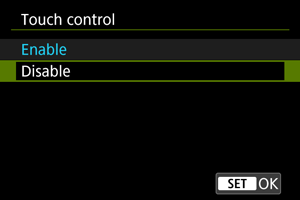
- Da biste onemogućili operacije dodirom na ekran, odaberite [Disable].
Oprez
-
Predostrožnosti pri obavljanju operacija na ekranu osetljivom dodir
- Nemojte obavljati operacije na ekranu osetljivom na dodir pomoću oštrih predmeta kao što su nokti ili hemijske olovke.
- Nemojte obavljati operacije na dodir mokrim rukama. Ako je ekran vlažan ili su vam prsti mokri, panel sa ekranom osetljivim na dodir možda neće reagovati na komande ili se može pokvariti. U tom slučaju, isključite fotoaparat i obrišite panel suvom krpom.
- Nemojte lepiti komercijalno dostupne folije ili nalepnice na ekran kako ne biste oslabili odziv panela na operacije na dodir.
Brisanje svih prilagođenih kontrola
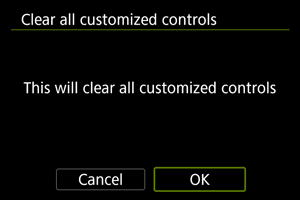
Odaberite [: Clear all customized controls] da biste obrisali sve postavke prilagođenih kontrola.