
Changing Camera Settings
You can operate the terminal to change the settings of the receiver camera.
-
Start the EMR application and display the Multi View screen 1 (), Multi View screen 2 (), or the Single View screen ().
-
Tap [Multi-Camera Settings] and change the settings as needed.
Caution
- Set the high-frequency anti-flicker shooting setting the same way on all cameras.
- Some menu items may not be available for operation.
Saving, Loading, and Copying Camera Shooting Settings
Camera shooting settings (values configured by tapping [ ]) can be saved to a file, loaded from a file, or copied to other connected cameras.
-
Tap the camera settings icon.
-
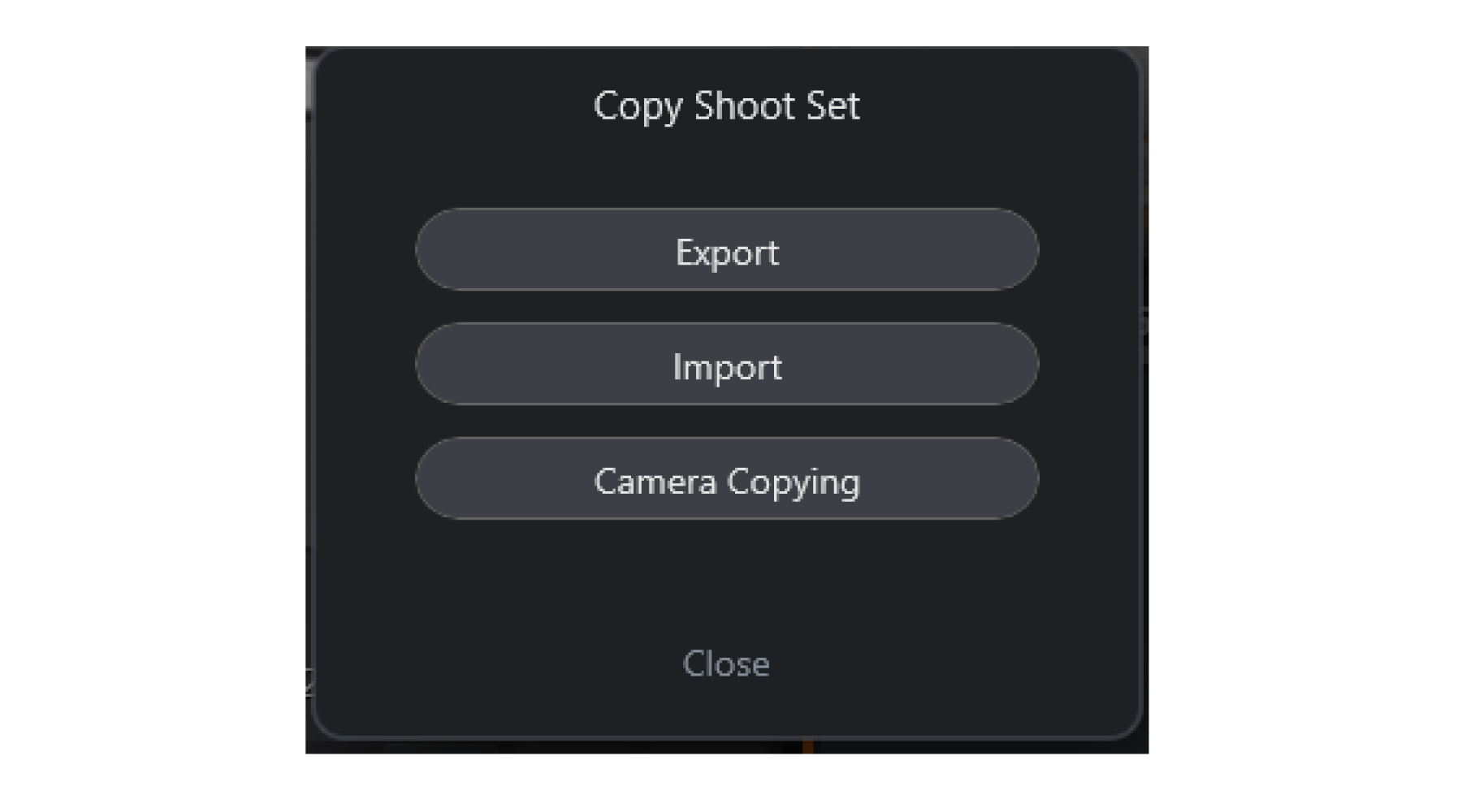
Tap [Copy Shoot Set].
-
Select an action to perform.
-
Export
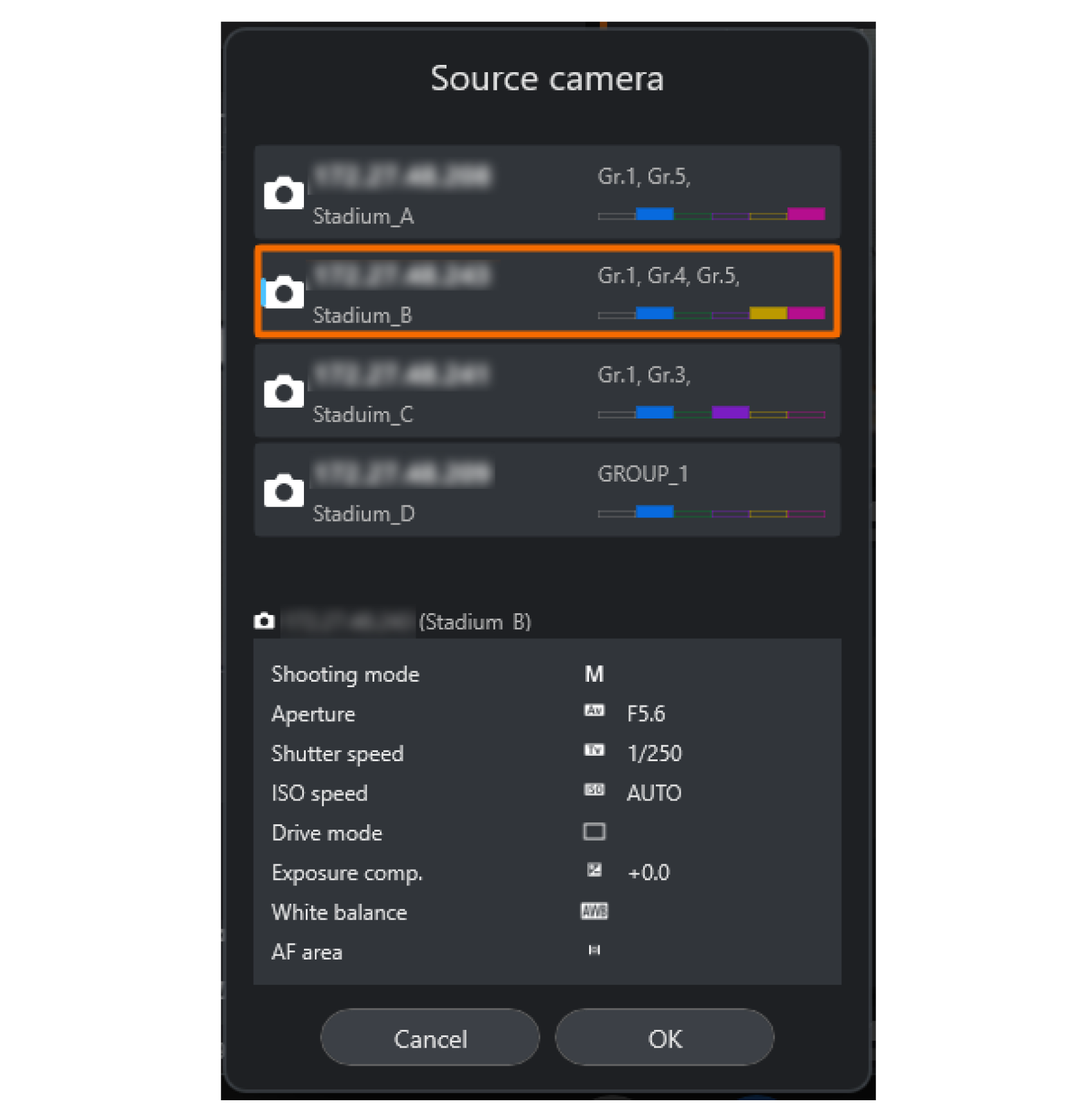
Saves camera settings. On the [Source camera] screen, select the camera with settings to save, then tap [OK]. Export the settings on the next screen displayed.
-
Import
Applies saved camera settings to other cameras. Open the folder where the settings file is stored and select it. On the [Target camera] screen, select cameras to apply the settings to, then tap [OK] on the confirmation screen displayed next.
-
Camera Copying
Enables you to copy manually configured shooting settings from one camera to others. Tap this button, select the camera with shooting settings to copy on the [Source camera] screen displayed, then tap [OK]. On the [Target camera] screen, select cameras to copy the settings to, then tap [OK] on the confirmation screen displayed.
-