
USB (UVC/UAC) Streaming
Select this option if you will use UVC/UAC-compatible applications over a USB connection to a computer or other device.
-
Select [OK].
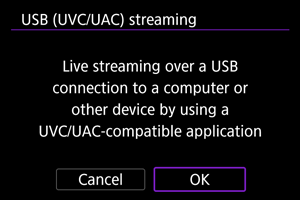
-
Connect the camera to the other device with a USB cable.
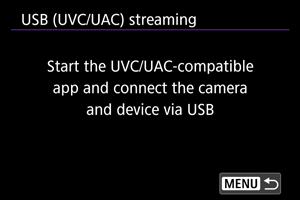
- Connect the camera to the device with a USB cable after this message appears.
-
Start the application on the device.
- Check video input on the connected device.
- [LIVE] is displayed on the shooting screen while video is displayed by the application.
 :
: 
Caution
- Consider using power over USB or a household power outlet accessory (sold separately) when using the camera over extended periods.
- If noise from an external microphone is distracting, try placing the microphone on the side of the camera with the external microphone IN terminal as far from the camera as possible.
- The camera will become warmer during streaming. Use the stand or a tripod, or take other measures to avoid handheld recording.
- No image is recorded to the card during streaming.
- Test streaming in advance to make sure that the image is straight and in the correct orientation, and adjust the orientation as needed.
- Audio output is LPCM/16bit/2CH (channels 1 and 2), even with [
 : Audio format] set to [LPCM/24bit/4CH].
Enabling Power Over USB
By enabling power over USB, you can power the camera from a computer or other device. Complete this setting after connecting the devices via USB.
-
Tap [
 ] on the shooting screen.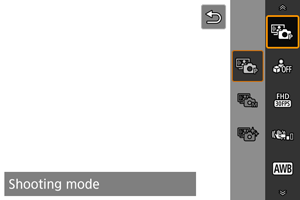
- The menu is displayed.
-
Select [Power over USB].
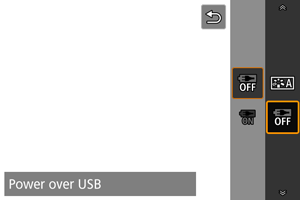
-
Select [On].
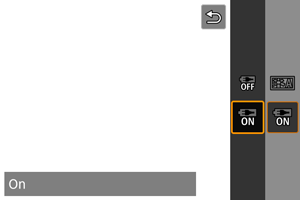
Caution
- Cannot be set while [LIVE] is displayed on the shooting screen.
- [On] is not available with [Movie rec. size] set to [
 ] or [
 ].
]. - Connect to a device that conforms to USB Power Delivery specifications and has an output of at least 1.5 A at 5V DC.
- Use a USB cable that conforms to USB Power Delivery specifications. We recommend using a genuine Canon product (Interface Cable IFC-100U).
- The remaining battery level may decline when power is supplied to the camera. To avoid running out of battery power, use a fully charged battery.
Setting the Streaming Size
You can set the streaming size. Complete this setting after connecting the devices via USB.
-
Tap [
] on the shooting screen.- The menu is displayed.
-
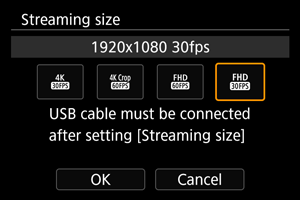
Select [Streaming size].

-
Select [
 ].
].
- The menu is displayed.
- Select [Streaming size].
-
Change the setting as needed.
Caution
- Cannot be set while streaming is in progress.
- [] and [] are not available with [Power over USB] set to [On] or with [Shooting mode] set to [Smooth skin movie].