
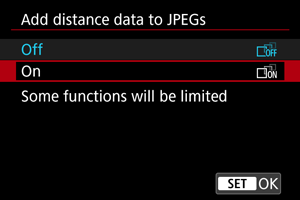
Adding Distance Data to JPEGs
Distance data can be added to JPEGs captured during Dual Pixel RAW shooting. You can import this data into Dual Pixel 3D Converter to generate 3D models from the JPEG images.
For compatible lenses, recommended shooting conditions, and other details, refer to the Dual Pixel 3D Converter instruction manual.
Caution
- Resizing or cropping an image will cause any distance data to be lost in the resulting image.
- It takes some time to record these images to a card, because distance data is added after shooting. [BUSY] appears on the screen as images are processed, and shooting is not possible until processing is finished.
- Continuous shooting speed is slower than usual when [Low speed continuous] is set.
- Shooting in Fv, Av, or M mode is recommended.
Note
-
Selecting [On] limits these features.
- [
 : Image quality] is only available for RAW+JPEG images.
 - [:
 Cropping/aspect ratio] options are limited to [Full-frame] and [1.6x (crop)].
- [
-
Shooting conditions for images with added distance data
-
These shooting conditions are recommended for capturing optimal JPEGs for Dual Pixel 3D Converter.
- Focal length: 24 mm or more
- Aperture value: f/5.6 or less
- ISO speed: not exceeding ISO 1600
- Shooting distance: within 5–10 times the focal length
- Composition: Subject centered and not consisting of reflection, transparency, or minute details, without foreground bokeh, camera shake, or subject blur
-
For details on lenses compatible with [Add distance data to JPEGs], check the Canon website ().