
A+: Fully Automatic Recording (Scene Intelligent Auto)
The camera detects the type of scene and sets all settings accordingly. The detected scene type is indicated in the upper left of the screen. For icon details, see Scene Icons.
-
Set the recording mode to [
 ].
].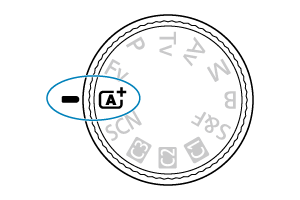
- Turn the Mode dial to
 .
.
- Turn the Mode dial to
-
Focus on the subject.
-
Record the movie.
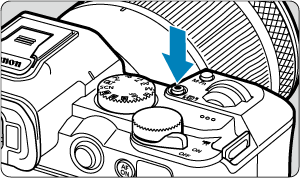
- Press the movie shooting button to start recording a movie. You can also start recording a movie by tapping [
 ] on the screen.
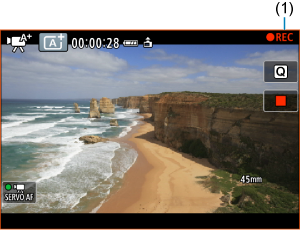
- While the movie is being recorded, [
 REC] (1) is displayed, the screen is outlined in red, and the tally lamp is lit.
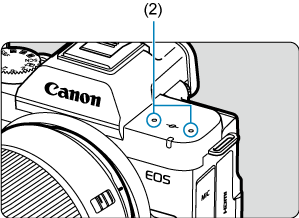
- Sound is recorded by the microphone (2).
- To stop recording the movie, press the movie shooting button again. You can also stop recording a movie by tapping [
 ] on the screen.
- Press the movie shooting button to start recording a movie. You can also start recording a movie by tapping [
 :
: Scene Icons
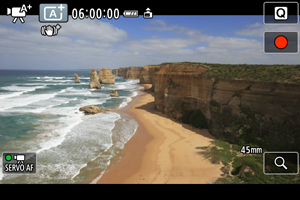
The camera detects the type of scene and sets all settings accordingly. The detected scene type is indicated in the upper left of the screen. For icon details, see Scene Icons.
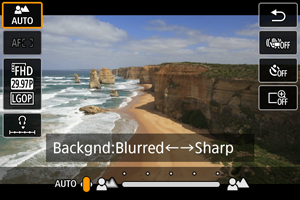
Depth-of-Field Adjustment (Background Blur)
You can adjust background blur.

Note
- The available setting range varies depending on the lens.
- Faster shutter speeds in some scenes may cause screen flickering under fluorescent or LED lighting to be recorded.