
Receiver Camera Registration and Group Settings
Start the EMR application on the terminal to register the receiver camera and configure the group settings.
Registering from the EMR Application
-
Tap [Add Camera] on the displayed screen.
-
Enter the IP address of the receiver camera on the displayed screen and tap [Ping].
- If [User authentic.] is set to [On] in the receiver camera connection, enter the user name and password.
- If an error is displayed, check the address setting, etc. or the network connection.
-
Tap [SET].
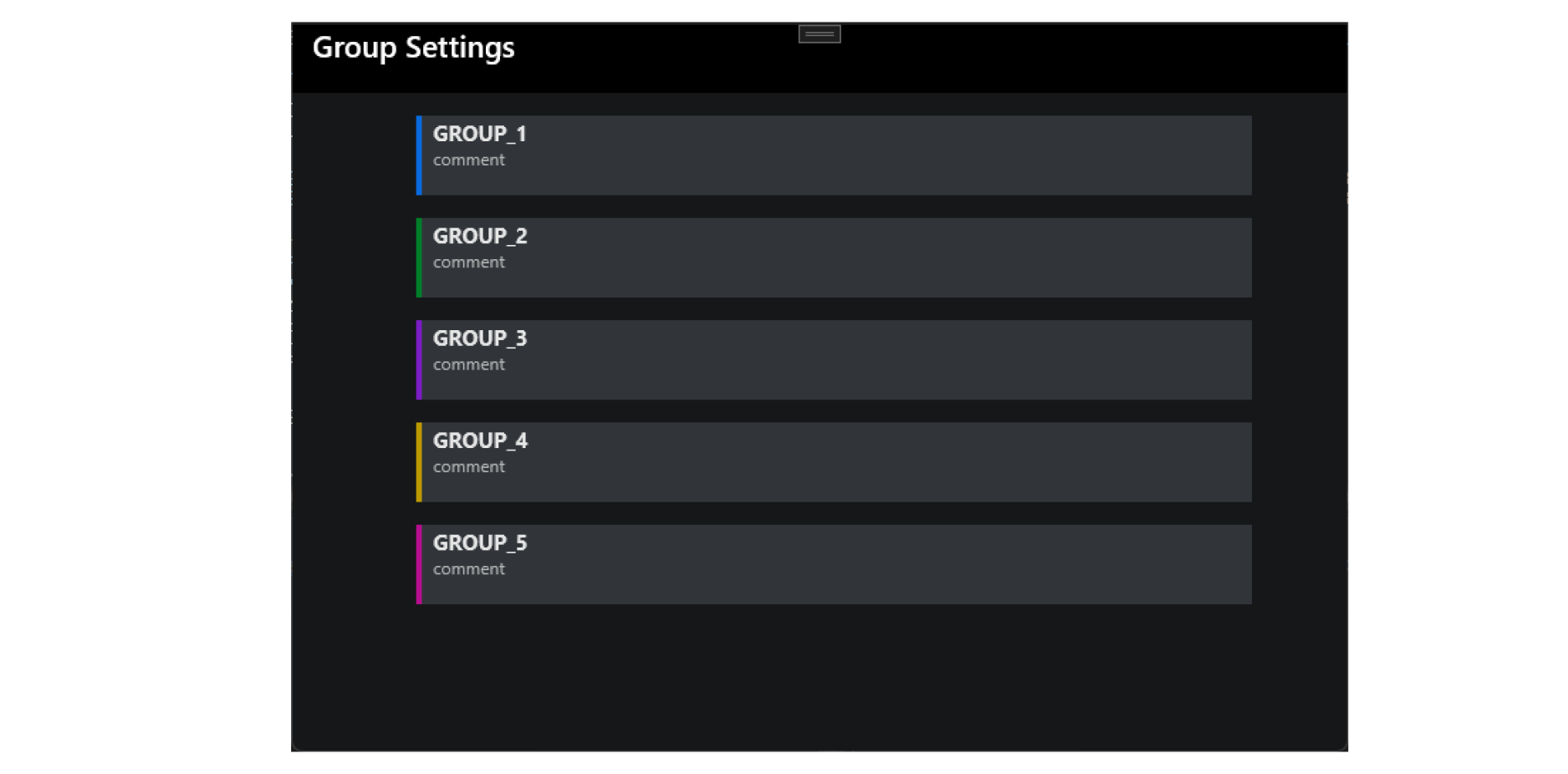
Group Settings
Up to five receiver camera groups can be set for batch operation.
Registering from the Sender Camera
If the sender camera is connected, the receiver camera can be registered from the sender camera.
-
Display the [Network settings] screen on the menu screen of the sender camera and select [Connection option settings].
-
Select [EOS Multi Remote settings] on the [Connection option settings] screen.
-
Select [Sender *] on the [EOS Multi Remote settings] screen.
-
Select [Receiver
 shoot.] on the next screen and select [On] on the screen that appears.
 -
Select [Receiver settings].
-
Select [RC* Unspecified] on the [Receiver settings] screen.
-
Select [IP address] on the next screen.
- The entry screen is displayed.
-
Enter the IP address and press the <
 > button.
- You will return to the previous screen.
-
Select [Receiver name].
- The entry screen is displayed.
-
Enter the receiver name and press the <
> button.