
HDR Mode
You can shoot high dynamic range photos that retain detail in highlights and shadows of high-contrast scenes.
For enhanced gradation in dark image areas, HDR shooting produces an HDR image that compensates for loss of detail in those areas by merging multiple images captured across a wide range of exposures per shot.
HDR images are captured as HEIFs or JPEGs.
HDR stands for High Dynamic Range.
-
Select [
 HDR Mode shoot.].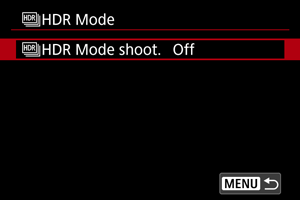
-
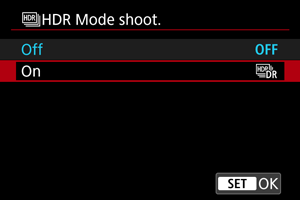
Select [On].
-
Configure each setting as needed.
- For setting details, see [
 HDR Mode] Settings.
- For setting details, see [
-
Take the picture.
- Press the shutter button completely. Multiple images captured per shot are merged into a single HDR image recorded to the card.
[HDR Mode] Settings
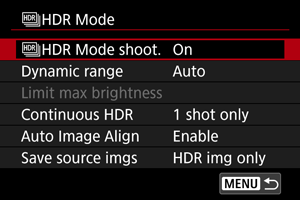
Suitable for landscape and still-life shots. For each shot, three images of different exposures (standard exposure, underexposure, and overexposure) are captured and automatically merged.
-
Dynamic range
Selecting [Auto] will have the dynamic range set automatically depending on the image's overall tonal range.
The higher the number, the wider the dynamic range will be.
-
Limit max brightness
Available only with [
 :
:  HDR shooting (PQ)] set to [HDR PQ].
With [Disable], maximum brightness is not limited. Recommended when you will review images on a monitor supporting display at brightnesses exceeding 1000 nits.
With [1000 nits], maximum brightness is limited to approx. 1000 nits.
-
Continuous HDR
With [1 shot only], HDR shooting is canceled automatically after you finish shooting.
With [Every shot], HDR shooting continues until you set [
HDR Mode shoot.] to [Disable]. -
Auto Image Align
For handheld shooting, select [Enable]. When using a tripod, select [Disable].
-
Save source imgs
To save the three images captured and the resulting HDR image, select [All images].
To save only the HDR image, select [HDR img only].
Caution
- The flash will not fire during HDR shooting.
- AEB is not available.
- Subjects such as the sky or white walls may not be rendered with smooth gradation and may have noise or irregular exposure or colors.
- Maximum shutter speed in HDR shooting is 1/8000 sec.
- When [
 Rec options] in [
 : Record func+card/folder sel.] is set to [Rec. separately], both slots save images with the same image quality as set for the card selected in [ Play] in [: Record func+card/folder sel.].
 Precautions when [
HDR Mode shoot.] is set to [On]- When shooting HDR images with [Auto Image Align] set to [Enable], AF point display information () and Dust Delete Data () will not be appended to the image.
- If you perform handheld HDR shooting with [Auto Image Align] set to [Enable], image periphery will be slightly trimmed and apparent resolution will be slightly lowered. Also, if the images cannot be aligned properly due to camera shake, etc., auto image alignment may not take effect. Note that when shooting with excessively bright (or dark) exposure settings, auto image alignment may not work properly.
- If you perform handheld HDR shooting with [Auto Image Align] set to [Disable], the three images may not be properly aligned and the HDR effect may be reduced. Using a tripod is recommended.
- As multiple images are captured, settings such as shutter speed and ISO speed are automatically adjusted. For this reason, even in Fv, Tv, or M mode, the shutter speed and ISO speed will change, relative to your specified shutter speed.
- To prevent camera shake, a high ISO speed may be set.
- Auto image alignment may not function properly with repetitive patterns (lattice, stripes, etc.) or flat, single-tone images.
- With HDR shooting, the images will be merged, then saved to the card, so it may take some time. [BUSY] appears on the screen as images are processed, and shooting is not possible until processing is finished.
Note
-
Setting [
HDR Mode shoot.] to [On] produces RAW HDR images with the following image quality.- [: HDR shooting (PQ)] set to [Disable]: JPEG quality
- [: HDR shooting (PQ)] set to [HDR PQ]: HEIF quality
HDR image quality in RAW+JPEG or RAW+HEIF shooting corresponds to your specified JPEG or HEIF image quality.
- [
- Exposure simulation is not performed, even with [: Display simulation] set to an option other than [Disable], when [HDR Mode shoot.] is set to [On].