
Customizing Quick Controls
Quick Control items and the layout are customizable.
-
Select [Edit layout].
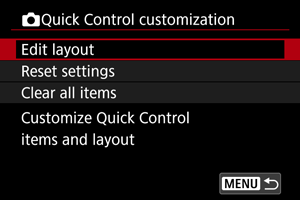
-
Select items to remove.
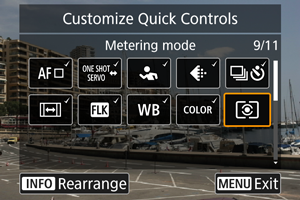
- Turn the
 or
or  dial or press
  vertically or horizontally to select items to remove, then press
  .
. - Items shown on the Quick Control screen are labeled with a checkmark. Items without a checkmark will be removed.
- Turn the
-
Select items to add.
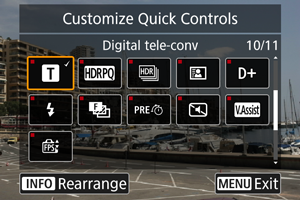
- Turn the or dial or press vertically or horizontally to select items to add, then press .
- To change the layout, press the
 button.
- Turn the
-
Change the layout.
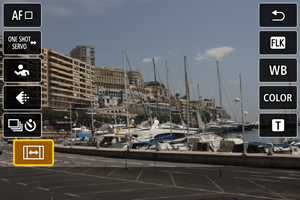
- Turn the dial or press up or down to select an item to move, then press .
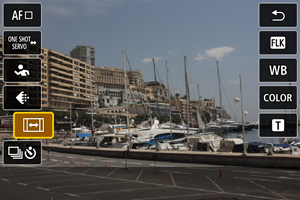
- Turn the dial or press up or down to move the item, then press .
- Press the
 button to exit setup.
- Turn the
-
Select [Save and exit].
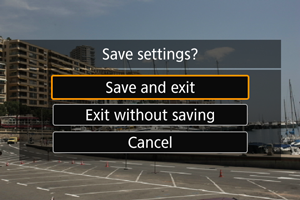
-
Review the screen.
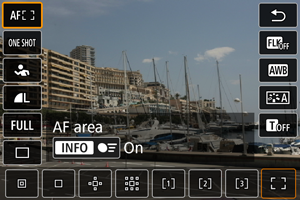
- Press to check the screen with your settings applied.
- Press
 :
:  Quick Control customization
 Quick Control customization
Resetting the Custom Quick Control Screen or Clearing All Items
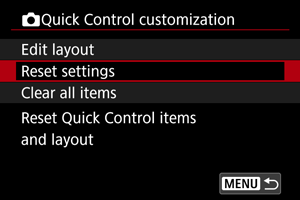
- Select [Reset settings] to restore the default Quick Control screen items and layout.
- Select [Clear all items] to remove all items from the layout, so that the Quick Control screen is not displayed even when is pressed.