Movie Recording
You can change the recording mode to suit the scene.
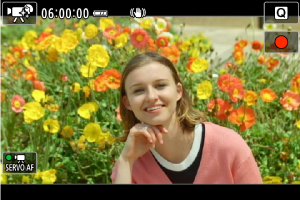
Smooth Skin Movie
Select [ ].
].
Image processing makes skin look smoother.
The effect level and other details can be set in [Smooth skin effect] on the Quick Control screen.
 Shooting tips
-
Focus on the face.
Adjust the distance between the face and the camera and set the focus so that the tracking frame [
 ] is displayed on the face.
Caution
- Areas other than people's skin may be modified, depending on the shooting conditions.
- If the smooth skin effect is too strong, images may not look as expected. Take some test shots in advance and check the results.
Note
- The [Smooth skin effect] setting is retained even if you change shooting modes or turn the camera off.
Movie for Close-Up Demos
Select [ ].
].
Subjects near the camera can be given priority for focusing. This is useful for demonstrations, product reviews, or similar situations.
Adjust the brightness, etc. in Quick Control.
Caution
- No AF points are displayed.
- Subjects cannot be selected manually.
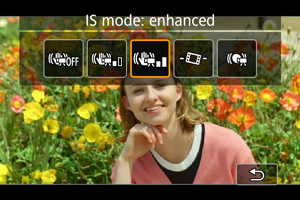
Movie IS Mode
Select [ ].
].
Enables movie recording with reduced camera shake.
Adjust the brightness, etc. in Quick Control.
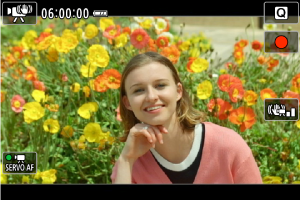
Press the  button to change the image stabilization settings.