
HDMI Streaming
Select this option if you will stream over an HDMI connection with an HDMI-compatible device.
-
Select [OK].
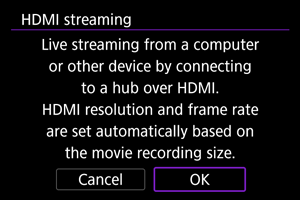
-
Connect the camera to the other device with a HDMI cable.
-
Start the application on the device.
- Check video input on the connected device.
 :
: 
Caution
- Audio output is LPCM/16bit/2CH (channels 1 and 2), even with [
 : Audio format] set to [LPCM/24bit/4CH].
 - Consider using power over USB or a household power outlet accessory (sold separately) when using the camera over extended periods.
- The remaining battery level may decline when power is supplied to the camera. To avoid running out of battery power, use a fully charged battery.
- If noise from an external microphone is distracting, try placing the microphone on the side of the camera with the external microphone IN terminal as far from the camera as possible.
- The camera will become warmer during streaming. Use the stand or a tripod, or take other measures to avoid handheld recording.
- No image is recorded to the card during streaming.
- Test streaming in advance to make sure that the image is straight and in the correct orientation, and adjust the orientation as needed.
-
The HDMI output resolution and frame rate are automatically adjusted to suit the movie recording size.
For the actual resolution and frame rate, check the movie recording screen.
-
The following restrictions apply to HDMI video output when [
: Movie rec. size] is set to 4K or larger.- A size of 4K is used.
- The maximum frame rate is 59.94 fps (NTSC) or 50.00 fps (PAL).
-
The frame rate with [
: Movie rec. size] set to 1920×1080 is restricted to 59.94 fps (NTSC) or 50.00 fps (PAL). Configured frame rates of 29.97/23.98 fps (NTSC) or 25.00 fps (PAL) are pulled down to 59.94 fps (NTSC) or 50.00 fps (PAL), respectively.