Control Customization Details
You can customize camera features on the [ ] tab to suit your shooting preferences.
[Customized controls when shooting]
Customize buttons for shooting
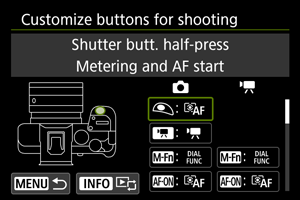
You can assign common shooting functions to camera buttons that are easy for you to use. Different functions, for use when shooting still photos or movies, can be assigned to the same button.
-
Select a camera control.
-
Select a function to assign.
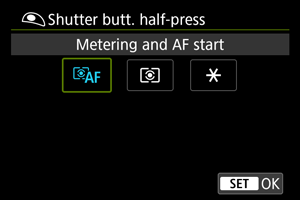
- Press
 to set it.
 - You can configure advanced settings for functions labeled with [
 ] in the lower left of the screen by pressing the
  button.
- Press
Note
- [
 ]: “AF Stop” or “Lens Function” button on super telephoto lenses with Image Stabilizer.
 - [
 ]: “Menu direct” button on Speedlites.
 - [
 ], [
], [ ]: “Remote function” buttons on Wireless Remote Control BR-E2 (sold separately).
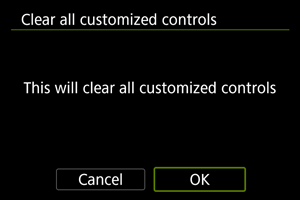
 - To clear settings configured with [: Customize buttons for shooting], select [: Clear all customized controls].
Functions available for customization (still photo shooting)
| ●: Default ○: Available for customization | |||||||||||||||
 |
 |
 |
 |
 |
 |
 |  |
 |
 |
 |
 |
|
|
|
|
|---|---|---|---|---|---|---|---|---|---|---|---|---|---|---|---|
 : Metering and AF start : Metering and AF start |
|||||||||||||||
| ● | - | - | ● | ○ | ○ | - | - | - | - | - | - | ○ | ○ | ○ | - |
 : AF stop : AF stop |
|||||||||||||||
| - | ○ | ○ | ○ | ○ | ○ | - | - | - | - | - | - | ● | - | - | - |
 : AE lock, AF stop : AE lock, AF stop |
|||||||||||||||
| - | ○ | ○ | ○ | ○ | ○ | - | - | - | - | - | - | ○ | - | - | - |
 : AF point selection : AF point selection |
|||||||||||||||
| - | ○ | ○ | ○ | ○ | ● | ○ | ○ | ○ | ○ | ○ | - | ○ | - | - | - |
 : Direct AF point selection : Direct AF point selection |
|||||||||||||||
| - | - | - | - | - | - | ○ | ○ | ○ | ○ | - | ● | - | - | - | - |
 : Set AF point to center : Set AF point to center |
|||||||||||||||
| - | ○ | ○ | ○ | ○ | ○ | ○ | ○ | ○ | ○ | ○ | - | ○ | - | - | - |
 : Start/stop whole area AF tracking : Start/stop whole area AF tracking |
|||||||||||||||
| - | ○ | ○ | ○ | ○ | ○ | ○ | ○ | ○ | ○ | ○ | - | ○ | - | - | - |
 : Direct AF area selection : Direct AF area selection |
|||||||||||||||
| - | ○ | ○ | ○ | ○ | ○ | ○ | ○ | ○ | ○ | ○ | - | ○ | - | - | - |
 : Direct select of sub to detect : Direct select of sub to detect |
|||||||||||||||
| - | ○ | ○ | ○ | ○ | ○ | ○ | ○ | ○ | ○ | ○ | - | ○ | - | - | - |
 : One-Shot AF : One-Shot AF  Servo AF Servo AF |
|||||||||||||||
| - | ○ | ○ | ○ | ○ | ○ | ○ | ○ | ○ | ○ | ○ | - | ○ | - | - | - |
 : AF on detected subject : AF on detected subject |
|||||||||||||||
| - | - | - | ○ | ○ | ○ | - | - | - | - | - | - | ○ | - | - | - |
 : Eye Detection AF : Eye Detection AF |
|||||||||||||||
| - | - | - | ○ | ○ | ○ | - | - | - | - | - | - | ○ | - | - | - |
 : Eye detection : Eye detection |
|||||||||||||||
| - | ○ | ○ | ○ | ○ | ○ | ○ | ○ | ○ | ○ | ○ | - | ○ | ○ | ○ | - |
 : Spot detection : Spot detection |
|||||||||||||||
| - | ○ | ○ | ○ | ○ | ○ | ○ | ○ | ○ | ○ | ○ | - | ○ | - | - | - |
 : Register people priority : Register people priority |
|||||||||||||||
| - | ○ | ○ | ○ | ○ | ○ | ○ | ○ | ○ | ○ | ○ | - | ○ | - | - | - |
 : Focus mode : Focus mode |
|||||||||||||||
| - | ○ | ○ | ○ | ○ | ○ | ○ | ○ | ○ | ○ | ○ | - | ○ | - | - | - |
 : Peaking : Peaking |
|||||||||||||||
| - | ○ | ○ | ○ | ○ | ○ | ○ | ○ | ○ | ○ | ○ | - | ○ | ○ | ○ | - |
 : Focus guide : Focus guide |
|||||||||||||||
| - | ○ | ○ | ○ | ○ | ○ | ○ | ○ | ○ | ○ | ○ | - | ○ | - | - | - |
 : Register focus preset : Register focus preset |
|||||||||||||||
| - | ○ | ○ | ○ | ○ | ○ | ○ | ○ | ○ | ○ | ○ | - | ○ | - | - | - |
 : Playback focus preset : Playback focus preset |
|||||||||||||||
| - | ○ | ○ | ○ | ○ | ○ | ○ | ○ | ○ | ○ | ○ | - | ○ | - | - | - |
 : Metering start : Metering start |
|||||||||||||||
| ○ | - | - | - | - | - | - | - | - | - | - | - | - | - | - | - |
 : AE lock : AE lock |
|||||||||||||||
| - | ○ | ○ | ○ | ○ | ○ | - | - | - | - | - | - | ○ | - | - | - |
 : AE lock (hold) : AE lock (hold) |
|||||||||||||||
| - | ○ | ○ | ○ | ○ | ○ | - | - | - | - | - | - | ○ | ○ | ○ | - |
| : AE lock (while button pressed) |
|||||||||||||||
| ○ | - | - | - | - | - | - | - | - | - | - | - | - | - | - | - |
 : AE lock/FE lock : AE lock/FE lock |
|||||||||||||||
| - | ○ | ○ | ○ | ● | ○ | - | - | - | - | - | - | ○ | - | - | - |
 : Release AE Lock : Release AE Lock |
|||||||||||||||
| - | ○ | ○ | ○ | ○ | ○ | - | - | - | - | - | - | ○ | - | - | - |
 : Expo comp (hold btn, turn : Expo comp (hold btn, turn  ) ) |
|||||||||||||||
| - | - | - | ○ | ○ | ○ | ○ | ○ | ○ | ○ | ○ | - | ○ | - | - | - |
 : ISO speed : ISO speed |
|||||||||||||||
| - | ○ | ○ | ○ | ○ | ○ | ○ | ○ | ○ | ○ | ○ | - | ○ | - | - | - |
| ●: Default ○: Available for customization | |||||||||||||||
|
|
|
|
|
|
| |
|
|
|
|
|
|
|
|
|---|---|---|---|---|---|---|---|---|---|---|---|---|---|---|---|
 : Set ISO speed(hold btn,turn) : Set ISO speed(hold btn,turn) |
|||||||||||||||
| - | - | - | ○ | ○ | ○ | ○ | ○ | ○ | ○ | ○ | - | ○ | - | - | - |
 : Flash function settings : Flash function settings |
|||||||||||||||
| - | ○ | ○ | ○ | ○ | ○ | ○ | ○ | ○ | ○ | ○ | - | ○ | - | - | ● |
 : Quick flash group control : Quick flash group control |
|||||||||||||||
| - | ○ | ○ | ○ | ○ | ○ | ○ | ○ | ○ | ○ | ○ | - | ○ | - | - | ○ |
 : Flash firing : Flash firing |
|||||||||||||||
| - | ○ | ○ | ○ | ○ | ○ | ○ | ○ | ○ | ○ | ○ | - | ○ | - | - | - |
 : ETTL M (with FEM enabled) : ETTL M (with FEM enabled) |
|||||||||||||||
| - | ○ | ○ | ○ | ○ | ○ | ○ | ○ | ○ | ○ | ○ | - | ○ | - | - | - |
 : FE lock : FE lock |
|||||||||||||||
| - | ○ | ○ | ○ | ○ | ○ | - | - | - | - | - | - | ○ | - | - | - |
 : Movie recording : Movie recording |
|||||||||||||||
| - | ● | ○ | ○ | ○ | ○ | - | - | - | - | ○ | - | ○ | - | - | - |
 : Pause Movie Servo AF : Pause Movie Servo AF |
|||||||||||||||
| - | ○ | ○ | ○ | ○ | ○ | ○ | ○ | ○ | ○ | ○ | - | ○ | ○ | ○ | - |
 : Audio Status : Audio Status |
|||||||||||||||
| - | ○ | ○ | ○ | ○ | ○ | ○ | ○ | ○ | ○ | ○ | - | ○ | - | - | - |
 : Dial function settings : Dial function settings |
|||||||||||||||
| - | ○ | ● | ○ | ○ | ○ | ○ | ○ | ○ | ○ | ○ | - | ○ | - | - | - |
 : Maximize screen brightness (temp) : Maximize screen brightness (temp) |
|||||||||||||||
| - | ○ | ○ | ○ | ○ | ○ | ○ | ○ | ○ | ○ | ○ | - | ○ | ○ | ○ | - |
 : Power off : Power off |
|||||||||||||||
| - | ○ | ○ | ○ | ○ | ○ | - | - | - | - | - | - | ○ | ● | ○ | - |
 : Screen off : Screen off |
|||||||||||||||
| - | ○ | ○ | ○ | ○ | ○ | ○ | ○ | ○ | ○ | ○ | - | ○ | ○ | ○ | - |
 : Silent shutter function : Silent shutter function |
|||||||||||||||
| - | ○ | ○ | ○ | ○ | ○ | ○ | ○ | ○ | ○ | ○ | - | ○ | - | - | - |
 : Switch focus/control ring : Switch focus/control ring |
|||||||||||||||
| - | ○ | ○ | ○ | ○ | ○ | ○ | ○ | ○ | ○ | ○ | - | ○ | - | - | - |
 : Depth-of-field preview : Depth-of-field preview |
|||||||||||||||
| - | ○ | ○ | ○ | ○ | ○ | ○ | ○ | ○ | ○ | ○ | - | ○ | - | - | - |
 : Reset selected item in Fv mode : Reset selected item in Fv mode |
|||||||||||||||
| - | ○ | ○ | ○ | ○ | ○ | ● | ● | ○ | ○ | ○ | - | ○ | - | - | - |
 : Reset Tv/Av/ : Reset Tv/Av/ /ISO in Fv mode /ISO in Fv mode |
|||||||||||||||
| - | ○ | ○ | ○ | ○ | ○ | ○ | ○ | ● | ● | ○ | - | ○ | - | - | - |
 : Quick Control screen : Quick Control screen |
|||||||||||||||
| - | ○ | ○ | ○ | ○ | ○ | ○ | ○ | ○ | ○ | ● | - | ○ | - | - | - |
 : Cinema zoom (to tele) : Cinema zoom (to tele) |
|||||||||||||||
| - | ○ | ○ | ○ | ○ | ○ | ○ | ○ | ○ | ○ | ○ | - | ○ | - | - | - |
 : Cinema zoom (to wide) : Cinema zoom (to wide) |
|||||||||||||||
| - | ○ | ○ | ○ | ○ | ○ | ○ | ○ | ○ | ○ | ○ | - | ○ | - | - | - |
 : Magnify/Reduce : Magnify/Reduce |
|||||||||||||||
| - | ○ | ○ | ○ | ○ | ○ | ○ | ○ | ○ | ○ | ○ | - | ○ | ○ | ○ | - |
 : Image replay : Image replay |
|||||||||||||||
| - | ○ | ○ | ○ | ○ | ○ | ○ | ○ | ○ | ○ | ○ | - | ○ | ○ | ○ | - |
 : Magnify images during playback : Magnify images during playback |
|||||||||||||||
| - | ○ | ○ | ○ | ○ | ○ | ○ | ○ | ○ | ○ | ○ | - | ○ | - | - | - |
 : Menu display : Menu display |
|||||||||||||||
| - | ○ | ○ | ○ | ○ | ○ | ○ | ○ | ○ | ○ | ○ | - | ○ | - | - | - |
 : Image quality : Image quality |
|||||||||||||||
| - | ○ | ○ | ○ | ○ | ○ | ○ | ○ | ○ | ○ | ○ | - | ○ | - | - | - |
 : One-touch image quality setting : One-touch image quality setting |
|||||||||||||||
| - | ○ | ○ | ○ | ○ | ○ | ○ | ○ | ○ | ○ | ○ | - | ○ | - | - | - |
 : One-touch image quality (hold) : One-touch image quality (hold) |
|||||||||||||||
| - | ○ | ○ | ○ | ○ | ○ | ○ | ○ | ○ | ○ | ○ | - | ○ | - | - | - |
| ●: Default ○: Available for customization | |||||||||||||||
|
|
|
|
|
|
| |
|
|
|
|
|
|
|
|
|---|---|---|---|---|---|---|---|---|---|---|---|---|---|---|---|
 : :  Cropping/aspect ratio Cropping/aspect ratio |
|||||||||||||||
| - | ○ | ○ | ○ | ○ | ○ | ○ | ○ | ○ | ○ | ○ | - | ○ | - | - | - |
 : Switch between crop/aspect : Switch between crop/aspect |
|||||||||||||||
| - | ○ | ○ | ○ | ○ | ○ | ○ | ○ | ○ | ○ | ○ | - | ○ | ○ | ○ | - |
 : Digital tele-converter : Digital tele-converter |
|||||||||||||||
| - | ○ | ○ | ○ | ○ | ○ | ○ | ○ | ○ | ○ | ○ | - | ○ | - | - | - |
 : Manual HF anti-flicker shoot(Tv) : Manual HF anti-flicker shoot(Tv) |
|||||||||||||||
| - | ○ | ○ | ○ | ○ | ○ | ○ | ○ | ○ | ○ | ○ | - | ○ | - | - | - |
 : Recom. Tv for HF anti-flicker shoot : Recom. Tv for HF anti-flicker shoot |
|||||||||||||||
| - | ○ | ○ | ○ | ○ | ○ | ○ | ○ | ○ | ○ | ○ | - | ○ | - | - | - |
 : Color mode : Color mode |
|||||||||||||||
| - | ○ | ○ | ○ | ○ | ○ | ○ | ○ | ○ | ○ | ○ | - | ○ | - | - | - |
 : Picture Style : Picture Style |
|||||||||||||||
| - | ○ | ○ | ○ | ○ | ○ | ○ | ○ | ○ | ○ | ○ | - | ○ | - | - | - |
 : Color filter : Color filter |
|||||||||||||||
| - | ○ | ○ | ○ | ○ | ○ | ○ | ○ | ○ | ○ | ○ | - | ○ | - | - | - |
 : Auto Lighting Optimizer : Auto Lighting Optimizer |
|||||||||||||||
| - | ○ | ○ | ○ | ○ | ○ | ○ | ○ | ○ | ○ | ○ | - | ○ | - | - | - |
 : White balance selection : White balance selection |
|||||||||||||||
| - | ○ | ○ | ○ | ○ | ○ | ○ | ○ | ○ | ○ | ○ | - | ○ | - | - | - |
 : Switch color temperature : Switch color temperature |
|||||||||||||||
| - | ○ | ○ | ○ | ○ | ○ | ○ | ○ | ○ | ○ | ○ | - | ○ | ○ | ○ | - |
 : WB Shift/Bkt. : WB Shift/Bkt. |
|||||||||||||||
| - | ○ | ○ | ○ | ○ | ○ | ○ | ○ | ○ | ○ | ○ | - | ○ | - | - | - |
 : Drive mode : Drive mode |
|||||||||||||||
| - | ○ | ○ | ○ | ○ | ○ | ○ | ○ | ○ | ○ | ○ | - | ○ | - | - | - |
 : Pre-cont. shooting : Pre-cont. shooting |
|||||||||||||||
| - | ○ | ○ | ○ | ○ | ○ | ○ | ○ | ○ | ○ | ○ | - | ○ | - | - | - |
 : Auto level : Auto level |
|||||||||||||||
| - | ○ | ○ | ○ | ○ | ○ | ○ | ○ | ○ | ○ | ○ | - | ○ | - | - | - |
 : Touch Shutter : Touch Shutter |
|||||||||||||||
| - | ○ | ○ | ○ | ○ | ○ | ○ | ○ | ○ | ○ | ○ | - | ○ | - | - | - |
 : OVF sim. view assist : OVF sim. view assist |
|||||||||||||||
| - | ○ | ○ | ○ | ○ | ○ | ○ | ○ | ○ | ○ | ○ | - | ○ | - | - | - |
 : :  Display frame rate set. Display frame rate set. |
|||||||||||||||
| - | ○ | ○ | ○ | ○ | ○ | ○ | ○ | ○ | ○ | ○ | - | ○ | - | - | - |
 : Communication function : Communication function |
|||||||||||||||
| - | ○ | ○ | ○ | ○ | ○ | ○ | ○ | ○ | ○ | ○ | - | ○ | - | - | - |
 : Airplane mode : Airplane mode |
|||||||||||||||
| - | ○ | ○ | ○ | ○ | ○ | ○ | ○ | ○ | ○ | ○ | - | ○ | - | - | - |
 : Select folder : Select folder |
|||||||||||||||
| - | ○ | ○ | ○ | ○ | ○ | ○ | ○ | ○ | ○ | ○ | - | ○ | - | - | - |
 : Create folder : Create folder |
|||||||||||||||
| - | ○ | ○ | ○ | ○ | ○ | ○ | ○ | ○ | ○ | ○ | - | ○ | - | - | - |
 : Switch between VF/screen : Switch between VF/screen |
|||||||||||||||
| - | ○ | ○ | ○ | ○ | ○ | ○ | ○ | ○ | ○ | ○ | - | ○ | - | - | - |
 : Info button : Info button |
|||||||||||||||
| - | - | - | - | - | - | - | - | - | - | - | - | - | ○ | ● | - |
 : No function (disabled) : No function (disabled) |
|||||||||||||||
| - | ○ | ○ | ○ | ○ | ○ | ○ | ○ | ○ | ○ | ○ | ○ | ○ | - | - | ○ |
Functions available for customization (movie recording)
| ●: Default ○: Available for customization | ||||||||||||
|
|
|
|
| |
|
|
|
|
|
|
|
|---|---|---|---|---|---|---|---|---|---|---|---|---|
| : Metering and AF start |
||||||||||||
| - | ● | ○ | ○ | - | - | - | - | - | - | ○ | ○ | ○ |
| : AF stop |
||||||||||||
| ○ | ○ | ○ | ○ | - | - | - | - | - | - | ● | - | - |
| : AE lock, AF stop |
||||||||||||
| ○ | ○ | ○ | ○ | - | - | - | - | - | - | ○ | - | - |
| : AF point selection |
||||||||||||
| ○ | ○ | ○ | ● | ○ | ○ | ○ | ○ | ○ | - | ○ | - | - |
| : Direct AF point selection |
||||||||||||
| - | - | - | - | ○ | ○ | ○ | ○ | - | ● | - | - | - |
| : Set AF point to center |
||||||||||||
| ○ | ○ | ○ | ○ | ○ | ○ | ○ | ○ | ○ | - | ○ | - | - |
| : Start/stop whole area AF tracking |
||||||||||||
| ○ | ○ | ○ | ○ | ○ | ○ | ○ | ○ | ○ | - | ○ | - | - |
| : Eye detection |
||||||||||||
| ○ | ○ | ○ | ○ | ○ | ○ | ○ | ○ | ○ | - | ○ | ○ | ○ |
| : Spot detection |
||||||||||||
| ○ | ○ | ○ | ○ | ○ | ○ | ○ | ○ | ○ | - | ○ | - | - |
| : Register people priority |
||||||||||||
| ○ | ○ | ○ | ○ | ○ | ○ | ○ | ○ | ○ | - | ○ | - | - |
| : Focus mode |
||||||||||||
| ○ | ○ | ○ | ○ | ○ | ○ | ○ | ○ | ○ | - | ○ | - | - |
| : Peaking |
||||||||||||
| ○ | ○ | ○ | ○ | ○ | ○ | ○ | ○ | ○ | - | ○ | ○ | ○ |
| : Focus guide |
||||||||||||
| ○ | ○ | ○ | ○ | ○ | ○ | ○ | ○ | ○ | - | ○ | - | - |
| : Register focus preset |
||||||||||||
| ○ | ○ | ○ | ○ | ○ | ○ | ○ | ○ | ○ | - | ○ | - | - |
| : Playback focus preset |
||||||||||||
| ○ | ○ | ○ | ○ | ○ | ○ | ○ | ○ | ○ | - | ○ | - | - |
 : Defocus : Defocus |
||||||||||||
| ○ | ○ | ○ | ○ | ○ | ○ | ○ | ○ | ○ | - | ○ | ○ | ○ |
 : Defocus settings : Defocus settings |
||||||||||||
| ○ | ○ | ○ | ○ | ○ | ○ | ○ | ○ | ○ | - | ○ | - | - |
| : AE lock |
||||||||||||
| ○ | ○ | ○ | ○ | - | - | - | - | - | - | ○ | - | - |
| : AE lock (hold) |
||||||||||||
| ○ | ○ | ● | ○ | - | - | - | - | - | - | ○ | ○ | ○ |
| : Release AE Lock |
||||||||||||
| ○ | ○ | ○ | ○ | - | - | - | - | - | - | ○ | - | - |
| : Expo comp (hold btn, turn ) |
||||||||||||
| - | ○ | ○ | ○ | ○ | ○ | ○ | ○ | ○ | - | ○ | - | - |
| : ISO speed |
||||||||||||
| ○ | ○ | ○ | ○ | ○ | ○ | ○ | ○ | ○ | - | ○ | - | - |
| : Set ISO speed(hold btn,turn) |
||||||||||||
| - | ○ | ○ | ○ | ○ | ○ | ○ | ○ | ○ | - | ○ | - | - |
 : False color : False color |
||||||||||||
| ○ | ○ | ○ | ○ | ○ | ○ | ○ | ○ | ○ | - | ○ | ○ | ○ |
 : Zebra : Zebra |
||||||||||||
| ○ | ○ | ○ | ○ | ○ | ○ | ○ | ○ | ○ | - | ○ | ○ | ○ |
| : Movie recording |
||||||||||||
| ○ | ○ | ○ | ○ | - | - | - | - | ○ | - | ○ | - | - |
| : Pause Movie Servo AF |
||||||||||||
| ○ | ○ | ○ | ○ | ○ | ○ | ○ | ○ | ○ | - | ○ | ○ | ○ |
| ●: Default ○: Available for customization | ||||||||||||
|
|
|
|
| |
|
|
|
|
|
|
|
|---|---|---|---|---|---|---|---|---|---|---|---|---|
| : Audio Status |
||||||||||||
| ○ | ○ | ○ | ○ | ○ | ○ | ○ | ○ | ○ | - | ○ | - | - |
 : Subj. detect. AF : Subj. detect. AF |
||||||||||||
| ○ | ○ | ○ | ○ | ○ | ○ | ○ | ○ | ○ | - | ○ | ○ | ○ |
| : Dial function settings |
||||||||||||
| ● | ○ | ○ | ○ | ○ | ○ | ○ | ○ | ○ | - | ○ | - | - |
| : Maximize screen brightness (temp) |
||||||||||||
| ○ | ○ | ○ | ○ | ○ | ○ | ○ | ○ | ○ | - | ○ | ○ | ○ |
| : Power off |
||||||||||||
| ○ | ○ | ○ | ○ | - | - | - | - | - | - | ○ | ● | ○ |
| : Screen off |
||||||||||||
| ○ | ○ | ○ | ○ | ○ | ○ | ○ | ○ | ○ | - | ○ | ○ | ○ |
| : Switch focus/control ring |
||||||||||||
| ○ | ○ | ○ | ○ | ○ | ○ | ○ | ○ | ○ | - | ○ | - | - |
| : Quick Control screen |
||||||||||||
| ○ | ○ | ○ | ○ | ○ | ○ | ○ | ○ | ● | - | ○ | - | - |
| : Cinema zoom (to tele) |
||||||||||||
| ○ | ○ | ○ | ○ | ○ | ○ | ○ | ○ | ○ | - | ○ | - | - |
| : Cinema zoom (to wide) |
||||||||||||
| ○ | ○ | ○ | ○ | ○ | ○ | ○ | ○ | ○ | - | ○ | - | - |
| : Magnify/Reduce |
||||||||||||
| ○ | ○ | ○ | ○ | ○ | ○ | ○ | ○ | ○ | - | ○ | ○ | ○ |
| : Image replay |
||||||||||||
| ○ | ○ | ○ | ○ | ○ | ○ | ○ | ○ | ○ | - | ○ | ○ | ○ |
| : Magnify images during playback |
||||||||||||
| ○ | ○ | ○ | ○ | ○ | ○ | ○ | ○ | ○ | - | ○ | - | - |
| : Menu display |
||||||||||||
| ○ | ○ | ○ | ○ | ○ | ○ | ○ | ○ | ○ | - | ○ | - | - |
 : Digital zoom : Digital zoom |
||||||||||||
| ○ | ○ | ○ | ○ | ● | ○ | ○ | ● | ○ | - | ○ | - | - |
 : Flicker detection : Flicker detection |
||||||||||||
| ○ | ○ | ○ | ○ | ○ | ○ | ○ | ○ | ○ | - | ○ | ○ | ○ |
| : Manual HF anti-flicker shoot(Tv) |
||||||||||||
| ○ | ○ | ○ | ○ | ○ | ○ | ○ | ○ | ○ | - | ○ | - | - |
| : Color mode |
||||||||||||
| ○ | ○ | ○ | ○ | ○ | ○ | ○ | ○ | ○ | - | ○ | - | - |
| : Picture Style |
||||||||||||
| ○ | ○ | ○ | ○ | ○ | ○ | ○ | ○ | ○ | - | ○ | - | - |
| : Color filter |
||||||||||||
| ○ | ○ | ○ | ○ | ○ | ○ | ○ | ○ | ○ | - | ○ | - | - |
 : Custom Picture : Custom Picture |
||||||||||||
| ○ | ○ | ○ | ○ | ○ | ○ | ○ | ○ | ○ | - | ○ | - | - |
| : Auto Lighting Optimizer |
||||||||||||
| ○ | ○ | ○ | ○ | ○ | ○ | ○ | ○ | ○ | - | ○ | - | - |
| : White balance selection |
||||||||||||
| ○ | ○ | ○ | ○ | ○ | ○ | ○ | ○ | ○ | - | ○ | - | - |
| : Switch color temperature |
||||||||||||
| ○ | ○ | ○ | ○ | ○ | ○ | ○ | ○ | ○ | - | ○ | ○ | ○ |
| : WB correction |
||||||||||||
| ○ | ○ | ○ | ○ | ○ | ○ | ○ | ○ | ○ | - | ○ | - | - |
 : AWB lock : AWB lock |
||||||||||||
| ○ | ○ | ○ | ○ | ○ | ○ | ○ | ○ | ○ | - | ○ | - | - |
 : Pre-recording : Pre-recording |
||||||||||||
| ○ | ○ | ○ | ○ | ○ | ○ | ○ | ○ | ○ | - | ○ | - | - |
 : Cinema view : Cinema view |
||||||||||||
| ○ | ○ | ○ | ○ | ○ | ○ | ○ | ○ | ○ | - | ○ | - | - |
 : Movie self-timer : Movie self-timer |
||||||||||||
| ○ | ○ | ○ | ○ | ○ | ○ | ○ | ○ | ○ | - | ○ | ○ | ○ |
| ●: Default ○: Available for customization | ||||||||||||
|
|
|
|
| |
|
|
|
|
|
|
|
|---|---|---|---|---|---|---|---|---|---|---|---|---|
 : Digital IS : Digital IS |
||||||||||||
| ○ | ○ | ○ | ○ | ○ | ○ | ○ | ○ | ○ | - | ○ | ○ | ● |
| : Auto level |
||||||||||||
| ○ | ○ | ○ | ○ | ○ | ○ | ○ | ○ | ○ | - | ○ | - | - |
 : Standby: Low res. : Standby: Low res. |
||||||||||||
| ○ | ○ | ○ | ○ | ○ | ○ | ○ | ○ | ○ | - | ○ | - | - |
| : Communication function |
||||||||||||
| ○ | ○ | ○ | ○ | ○ | ○ | ○ | ○ | ○ | - | ○ | - | - |
 : Live streaming : Live streaming |
||||||||||||
| ○ | ○ | ○ | ○ | ○ | ○ | ○ | ○ | ○ | - | ○ | - | - |
| : Airplane mode |
||||||||||||
| ○ | ○ | ○ | ○ | ○ | ○ | ○ | ○ | ○ | - | ○ | - | - |
| : Select folder |
||||||||||||
| ○ | ○ | ○ | ○ | ○ | ○ | ○ | ○ | ○ | - | ○ | - | - |
| : Switch between VF/screen |
||||||||||||
| ○ | ○ | ○ | ○ | ○ | ○ | ○ | ○ | ○ | - | ○ | - | - |
| : Info button |
||||||||||||
| - | - | - | - | - | - | - | - | - | - | - | ○ | ○ |
| : No function (disabled) |
||||||||||||
| ○ | ○ | ○ | ○ | ○ | ● | ● | ○ | ○ | ○ | ○ | - | - |
Register focus preset/Playback focus preset
You can set your preferred focus positions in advance on the camera when using RF or RF-S lenses. Saved focus preset positions can be applied by pressing a button during standby.
Registering a focus position on the camera
Focus at the focusing distance to register as a preset, then press the button assigned to [Register focus preset].
Recalling preset focus positions
Press the button assigned to [Playback focus preset].
Note
- Focus presetting is available in AF and MF focus mode.
- Registered focus positions are cleared when you switch lenses or change camera batteries.
Defocus/Defocus settings
During movie recording, you can gradually defocus the image. This is useful as a transition when creating memorable movies.
Defocusing as you record
Press the button assigned to [Defocus] during movie recording to shift the focal position and defocus the subject. To stop defocusing, press the assigned button again.
Configuring defocus settings
Press the button assigned to [Defocus settings] to configure the amount and speed of [Defocus] operations.
-
Defocus amount
You can set the amount of defocusing in a range of 1–5.
-
Speed
You can set the speed of shifting the focal position in a range of 1–10.
Note
- Movie Servo AF is paused after defocus operations.
- Your specified defocus amount and speed may not be effective enough, depending on the lens used, the shooting situation, or other factors.
AWB lock
You can pause auto white balance operations during movie recording by pressing the button assigned to [AWB lock] in [: Customize buttons for shooting]. To unlock it, press the button again.
Shutter btn function for movies
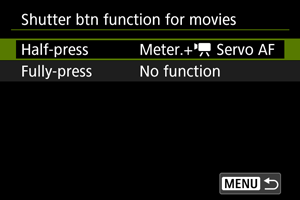
You can set the functions performed by pressing the shutter button halfway or completely during movie recording.
Caution
- In movie recording, the [Shutter btn function for movies] setting overrides any function assigned to the shutter button in [: Customize buttons for shooting].
-
Select an option.
-
Half-press
Specify the function performed by pressing the shutter button halfway.
-
Fully-press
Specify the function performed by pressing the shutter button completely.
-
-
Select an option.
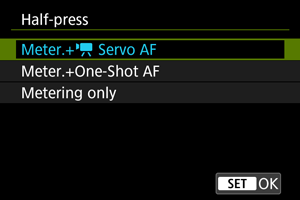
[Half-press] options
-
Meter.+
Servo AFWhile you hold down the shutter button halfway, the camera will keep focusing on the subject continuously. When you press the
 button, the camera will focus only once.
 -
Meter.+One-Shot AF
When you press the shutter button halfway, the camera will focus only once.
-
Metering only
Pressing the shutter button halfway starts metering. To focus, press the
button.
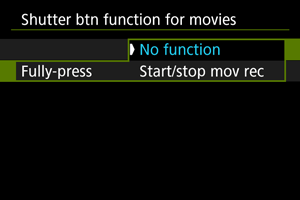
[Fully-press] options
-
With [Fully-press] set to [Start/stop mov rec], you can start/stop movie recording not only with the movie shooting button but also by pressing the shutter button completely, or by using a remote switch (sold separately).
-
Customize dials/control ring
Frequently used functions can be assigned to the  and
and  dials and
  ring.
ring.
-
Select a camera control.
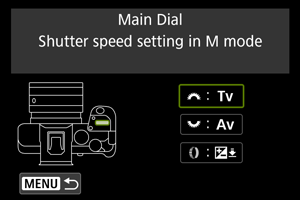
-
Select a function to assign.
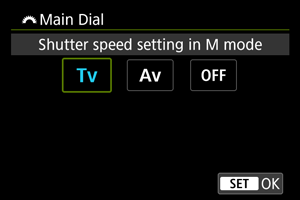
- Press to set it.
- You can configure advanced settings for functions labeled with [] in the lower left of the screen by pressing the button.
- Press
Note
- To clear settings configured with [: Customize dials/control ring], select [: Clear all customized controls].
Functions available for dials
| ●: Default ○: Available for customization | |||
| Function | |
 |
|
|---|---|---|---|
 : Change shutter speed (while holding metering button) : Change shutter speed (while holding metering button) |
- | - | ○ |
 : Change aperture value (while holding metering button) : Change aperture value (while holding metering button) |
- | - | ○ |
| : Set ISO speed (while holding metering button) |
- | - | ○ |
| : Exposure compensation (while holding metering button) |
- | - | ● |
 : Flash exposure comp./output (while holding metering button) : Flash exposure comp./output (while holding metering button) |
- | - | ○ |
 : Select AF area (while holding metering button) : Select AF area (while holding metering button) |
- | - | ○ |
 : Picture Style (while holding metering button) : Picture Style (while holding metering button) |
- | - | ○ |
 : White balance selection (while holding metering button) : White balance selection (while holding metering button) |
- | - | ○ |
 : Select color temperature (while holding metering button) : Select color temperature (while holding metering button) |
- | - | ○ |
 : Change shutter speed : Change shutter speed |
- | - | ○ |
 : Change aperture value : Change aperture value |
- | - | ○ |
| : Shutter speed setting in M mode |
● | ○ | - |
| : Aperture setting in M mode |
○ | ● | - |
| : Set ISO speed |
- | ○ | ○ |
| : Exposure compensation |
- | ○ | ○ |
 : Select AF area : Select AF area |
- | ○ | ○ |
| : Picture Style |
- | ○ | ○ |
| : White balance selection |
- | ○ | ○ |
 : Select color temperature : Select color temperature |
- | ○ | ○ |
| : No function (disabled) |
○ | ○ | ○ |
Note
- The dial cannot be customized in Fv mode.
- []: Control ring on RF lenses and mount adapters.

 direction to set Tv/Av
Dial turning direction when setting the shutter speed and aperture value can be reversed.
Reverses the turning direction of the and dials in M shooting mode and only the dial in other shooting modes. The direction of the dial in M mode matches the direction to set exposure compensation in P, Tv, and Av modes.
 : Normal
 : Reverse direction
 direction to set Tv/Av
The direction to set the shutter speed and aperture value with the control ring of RF or RF-S lenses or mount adapters can be reversed.
- : Normal
- : Reverse direction
Switch / when shooting
You can switch the functions assigned to the and dial.
- OFF: Disable
- ON: Enable
Touch Shutter
Touch Shutter can be specified. When set to [Enable], [ ] display in the lower left of the shooting screen changes to [], and Touch Shutter is enabled.
For Touch Shutter instructions, see Shooting with the Touch Shutter.
Multi function lock
Specify camera controls to lock when the Multi-function lock is enabled. This can help prevent accidentally changing settings.
-
Select camera controls to lock.
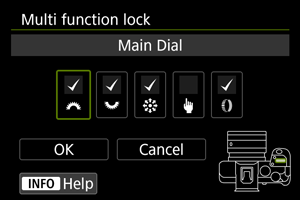
- Select a camera control and press to display [
 ].
].
- Select a camera control and press
-
Select [OK].
- Pressing the Multi-function lock button locks the selected [] camera controls.
- Pressing the Multi-function lock button locks the selected [
Note
- An asterisk “*” to the right of [: Multi function lock] indicates that the default setting has been modified.
Lens optical zoom speed
Available when using a power zoom lens.
Optical zooming is faster or slower depending on how much you turn the zoom ring.
The zoom speed during shooting standby and during movie recording can be set separately.
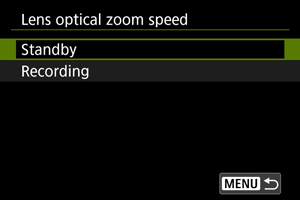
-
Zoom speed
Set the zoom speed.
Fast: Suitable for zooming during shooting standby.
Slow: Suitable when you prefer slow zooming, such as during movie recording.
-
Speed level
Set a zoom speed level (relative to the zoom speed), to zoom faster or slower depending on how much you turn the zoom ring.
Set the speed level in a range of 1–15 for the zoom speeds [Fast] and [Slow].
Touch & drag AF settings
You can move the AF point or Zone AF frame by tapping or dragging on the screen as you look through the viewfinder.
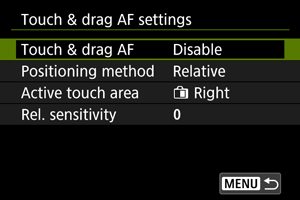
Touch & drag AF
Select [Enable] to enable Touch and Drag AF.
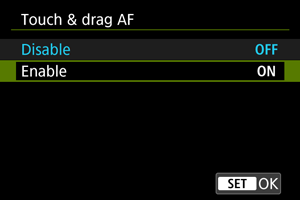
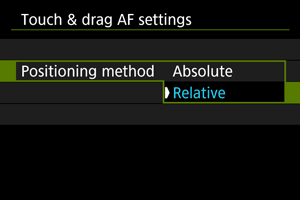
Positioning method
You can set how positions are specified by tapping or dragging.
-
Absolute
The AF point moves to the tapped or dragged position on the screen.
-
Relative
The AF point moves in the direction you drag, by an amount corresponding to the amount you drag, no matter where you tap the screen.
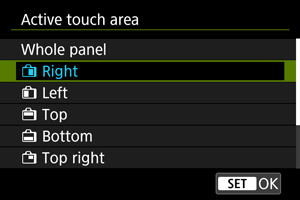
Active touch area
You can specify the area of the screen used for tap and drag operations.
Note
- A round orange frame [
 ] is displayed when you tap the screen with [
 : AF area] set to [Whole area AF]. After you lift your finger at the position to move the AF point to, [
 ] is displayed and that subject is tracked. To cancel subject selection, tap [
 ].
].
Rel. sensitivity
By setting [Positioning method] to [Relative], you can specify the amount of movement in response to tapping or dragging.
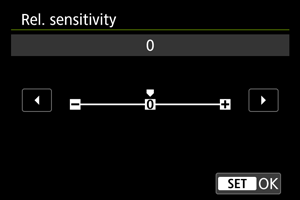
For faster AF point positioning, set toward the positive end, and for slower positioning, set toward the negative end.
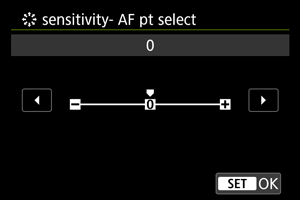
 sensitivity- AF pt select
You can adjust Multi-controller sensitivity, which applies to AF point positioning.
Focus/control ring
In this menu, you can configure lens [Focus/control ring] functionality.
Lenses without a focusing/control ring switch
-
FOCUS: Use as focus ring
The ring works as a focusing ring.
-
CONTROL: Use as control ring
The ring works as a control ring. To restrict [
: Focus mode] to [AF], press the button and add a checkmark [] to [Focus mode is AF when used as a control ring].
Lenses for which this menu is displayed that have both focusing and control rings
-
FOCUS: Use as focus ring
No change to focusing or control ring operation.
-
CONTROL: Use as control ring
The focusing ring works as a control ring. Control ring operation is disabled.
Note
- This menu is not displayed for lenses with a focusing/control ring switch. Use the lens to configure focusing/control ring functionality.
- For details on lenses with both focusing and control rings for which the camera displays this menu, visit the Canon website.
- Can also be configured from the Quick Control screen as customized with [
 : Quick Control customization] or [: Quick Control customization
 ] ().
] ().
Focus ring rotation
You can reverse the direction that the focusing ring of RF lens is rotated to adjust settings.
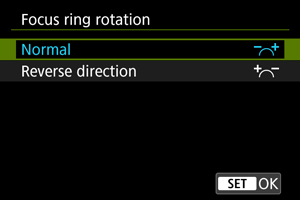
- : Normal
- : Reverse direction
RF lens MF focus ring sensitivity
You can set the sensitivity of the RF lens focusing ring.
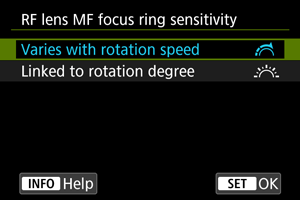
-
 : Varies with rotation speed
Focusing ring sensitivity varies depending on rotation speed.
-
 : Linked to rotation degree
The focal position is adjusted based on the amount of rotation, regardless of the rotation speed.
[Customized controls when playback]
Customize buttons for playback
You can assign common playback functions to camera buttons that are easy for you to use.
-
Select a camera control.
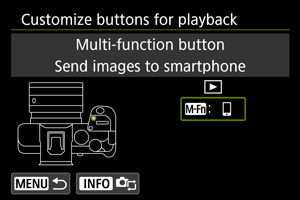
-
Select a function to assign.
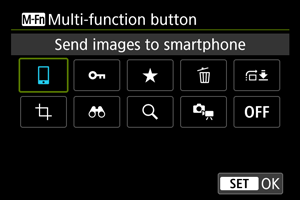
- Press to set it.
- You can configure advanced settings for functions labeled with [] in the lower left of the screen by pressing the button.
- Press
Note
- To clear settings configured with [: Customize buttons for playback], select [: Clear all customized controls].
Functions available for customization
| ●: Default ○: Available for customization | |
| Function | |
|---|---|
 : Protect : Protect |
○ |
 : Rating : Rating |
○ |
 : Erase images : Erase images |
○ |
 : Img jump w/ : Img jump w/ + + |
○ |
 : Cropping : Cropping |
○ |
 : Image search : Image search |
○ |
| : Magnify/Reduce |
○ |
 : Send images to smartphone : Send images to smartphone |
● |
 : Same as Custom. Button when shoot. : Same as Custom. Button when shoot. |
○ |
| : No function (disabled) |
○ |
Image jump w/
To set how the camera jumps through images, you can turn the dial on the playback screen in single-image display.
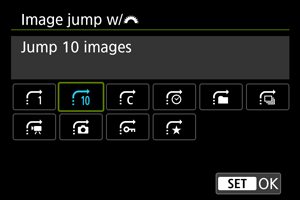
Note
- With [Jump images by the specified number], you can turn the dial to select the number of images to jump by.
- With [Display by image rating], turn the dial to select the rating (). Selecting will show all rated images as you browse.
- You can also change the jump method by pressing
 horizontally on the playback screen in single-image display.
Img jump w/ +
+
To set how the camera jumps through images, you can turn the dial while pressing the button assigned to [] on the playback screen in single-image display.
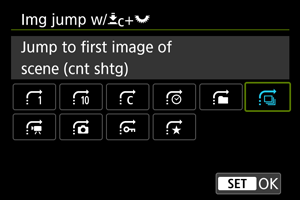
Note
- You can configure this function when assigning [] to a button in [: Customize buttons for playback] ().
- With [Jump images by the specified number], you can turn the dial to select the number of images to jump by.
- With [Display by image rating], turn the dial to select the rating (). Selecting will show all rated images as you browse.
[Customized controls/Reset]
Touch control
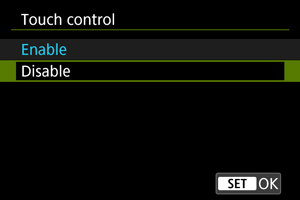
- To disable touch operations, select [Disable].
Caution
-
Precautions for touch-screen panel operations
- Do not use sharp objects such as fingernails or ballpoint pens for touch operations.
- Do not use wet fingers for touch operations. If the screen has any moisture or if your fingers are wet, the touch-screen panel may not respond or malfunction may occur. In this case, turn off the power and wipe off the moisture with a cloth.
- Attaching a commercially available protective sheet or a sticker on the screen may impair responsiveness to touch operations.
Clear all customized controls
Selecting [: Clear all customized controls] clears all control customization settings.