
Quick Control
You can directly and intuitively select and set the settings displayed.
-
Press
 (when shooting:
  ).
).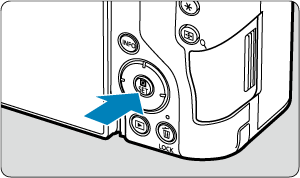
- The Quick Control screen is displayed.
-
Select a setting item and set your preferred option.
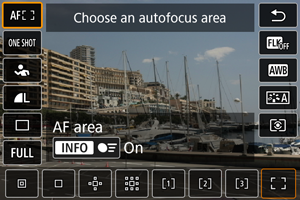
Still photo shooting
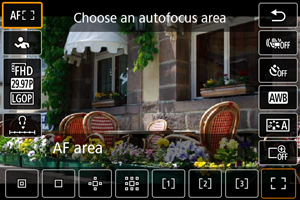
Movie recording
Playback
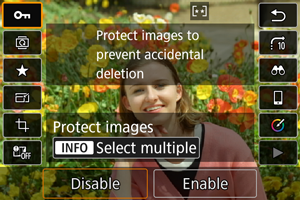
- For Quick Control screen instructions, see Using the Quick Control Screen.
Note
-
To select items on the following screen, press
 or
or  vertically or horizontally. Then, to adjust the setting, turn the
  or
or  dial. Some items are set by pressing a button after this.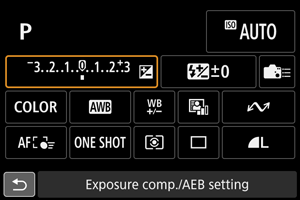
Using the Quick Control Screen
Quick Control in still photo shooting or playback
-
Select an option to configure.
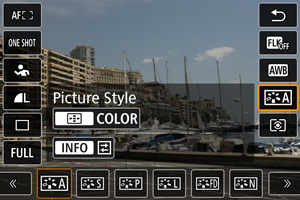
- Turn the dial to select an option.
- You can also select setting items by pressing or up or down.
- Turn the
-
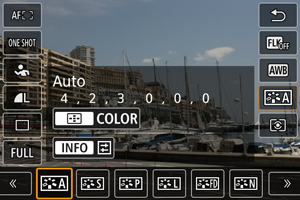
Adjust the setting as needed.
-
Turn the
dial to adjust the setting.Some items are set by pressing a button after this.
- You can also switch options by pressing or left or right.
-
Quick Control in movie recording
You can change the Quick Control view used in movie recording modes from [ : Quick Ctrl screen] (). Each tap of [
 ] switches between screens if you have selected both [Display 1] and [Display 2], but only the selected screen is displayed if one is selected ([
 ]).
]).
[Display 1]
[Display 2]
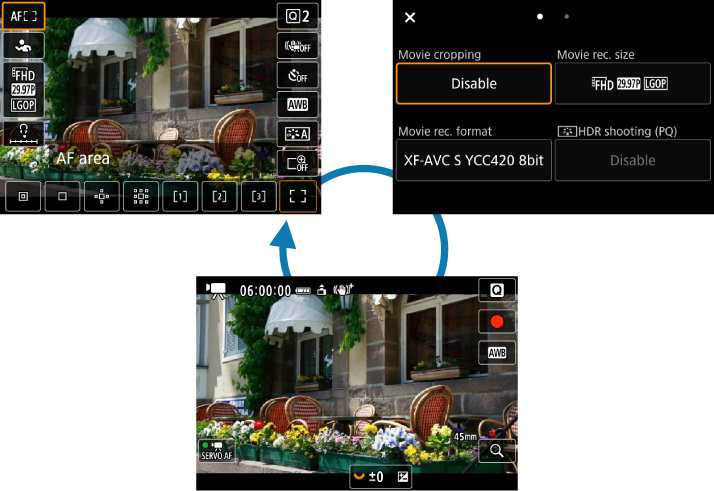
Movie recording screen
[Display 1] screen
Used as described in Quick Control in still photo shooting or playback. You can also customize this screen ().
[Display 2] screen
-
Switch pages as needed.
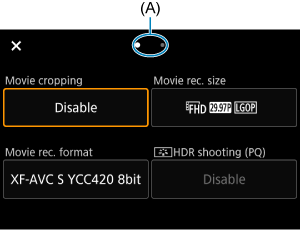
- Turn the dial to switch pages.
- You can also switch pages by tapping (A) or swiping left or right.
- Turn the
Select an item.
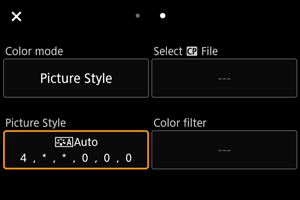
- Turn the dial to select an item, then press .
- You can also select items by pressing or .
- Turn the
Select an option.
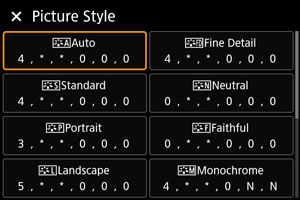
- Turn the dial to select an option.
- You can also select options by turning the dial or pressing or vertically or horizontally.
Setting screen for movie recording size
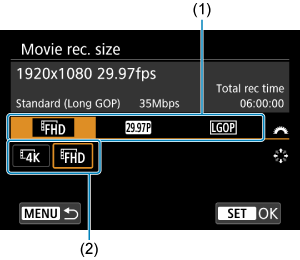
- Turn the dial to select a tab (1).
- Use to change the setting (2).
- Press to set it.
- Turn the
Set an option.
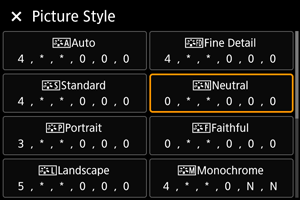
- Press to set it.
- Press
Exit the setting.
- Tap [
 ] in the upper left to return to shooting standby.
- Tap [