
Magnified Image Display
-
Magnify the image.
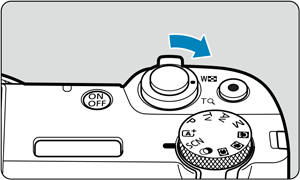
- During image playback, press the zoom lever on the
 side.
side.

- The magnified view will appear. The magnified area position (1) will be displayed in the lower right of the screen.
- Each press of the zoom lever on the side magnifies the display.
- Each press of the zoom lever on the
 side reduces the display. If the zoom lever is pressed further on the side, it switches to the index display ().
 - To erase the current image, select [Erase images] ().
- During image playback, press the zoom lever on the
-
Scroll the image.

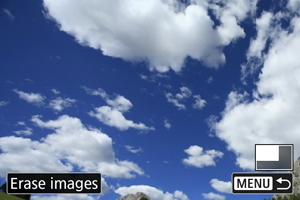
- Use the
 keys to scroll around the magnified image.
 - To cancel the magnified view, press the
 button or tap [
 ].
].
- Use the