
Schnelleinstellung
Sie können die angezeigten Einstellungen direkt und intuitiv auswählen und einstellen.
-
Drücken Sie die
 -Taste (bei Aufnahme:
  ).
).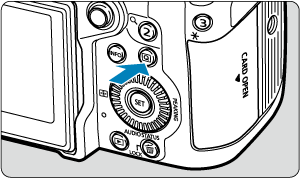
- Der Schnelleinstellungsbildschirm wird angezeigt.
-
Wählen Sie ein Einstellungselement, und legen Sie Ihre bevorzugte Option fest.
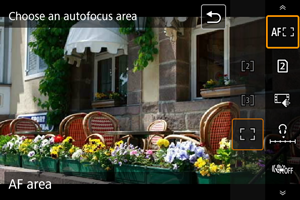
Movie-Aufnahme
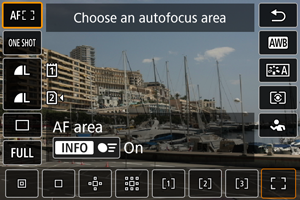
Fotoaufnahmen
Wiedergabe
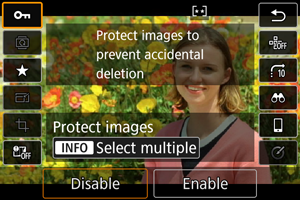
- Anweisungen zum Schnelleinstellungsbildschirm finden Sie unter Verwendung des Schnelleinstellungsbildschirms. Einzelheiten zu Funktionen während Fotoaufnahmen finden Sie unter [
 ]-Bildschirm.
- Anweisungen zum Schnelleinstellungsbildschirm finden Sie unter Verwendung des Schnelleinstellungsbildschirms. Einzelheiten zu Funktionen während Fotoaufnahmen finden Sie unter [
Hinweis
-
Um Elemente auf dem folgenden Bildschirm anzuzeigen, drücken Sie
 vertikal oder horizontal. Drehen Sie dann zum Anpassen der Einstellung das Wahlrad
  ,
,  oder
oder  . Einige Einstellungen werden anschließend per Knopfdruck vorgenommen.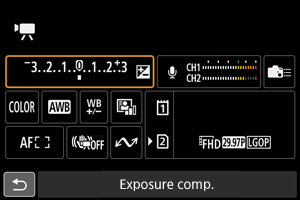
- Sie können die in den Movie-Aufnahmemodi verwendete Schnelleinstellungsansicht unter [
 : Schnellsteuerung] () ändern. Jedes Drücken der -Taste wechselt die Ansicht, wenn Sie mehrere Ansichten ausgewählt haben.
Verwendung des Schnelleinstellungsbildschirms
[ ]-Bildschirm
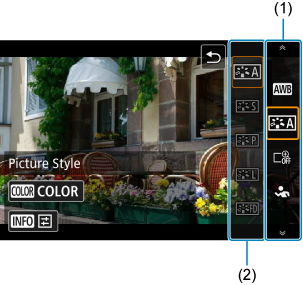
-
Wählen Sie ein Element, das konfigutriert werden soll.
- Drehen Sie das Wahlrad , um ein Element (1) auszuwählen. Drücken Sie dann
 .
.
- Drehen Sie das Wahlrad
-
Passen Sie die Einstellung bei Bedarf an.
-
Drehen Sie das Wahlrad
, um zu anderen Optionen (2) zu wechseln.Einige Einstellungen werden anschließend per Knopfdruck vorgenommen.
-
Hinweis
- Sie können auch Einstellungselemente (1) auswählen, indem Sie oder
 nach oben oder unten drücken.
 - Sie können Optionen (2) auch auswählen, indem Sie das Wahlrad oder drehen oder auf oder nach oben oder unten drücken.
- Sie können zwischen (1) und (2) wechseln, indem Sie auf oder nach links oder rechts drücken.
- Während eines Streamings mit [
 :
:  USB (UVC/UAC)-Streaming] verwenden Sie auf diesem Bildschirm Touch-Befehle.
[ ]-Bildschirm
-
Wählen Sie ein Element, das konfigutriert werden soll.
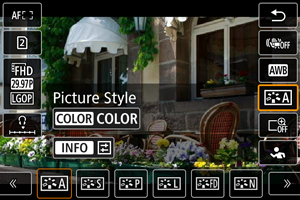
- Drehen Sie das Wahlrad , um ein Element auszuwählen.
- Sie können auch Einstellungselemente auswählen, indem Sie oder nach oben oder unten drücken.
- Drehen Sie das Wahlrad
-
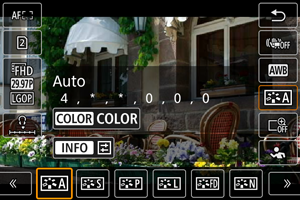
Passen Sie die Einstellung bei Bedarf an.
-
Drehen Sie das Wahlrad
oder , um zu anderen Optionen zu wechseln.Einige Einstellungen werden anschließend per Knopfdruck vorgenommen.
- Sie können zwischen Optionen auch wechseln, indem Sie auf oder nach links oder rechts drücken.
-
 Anpassung Schnelleinstellung
[ ]-Bildschirm
-
Wechseln Sie bei Bedarf die Seiten.
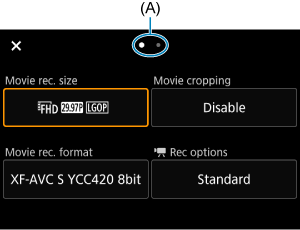
- Drehen Sie das Wahlrad oder , um die Seiten zu wechseln.
- Sie können auch durch Tippen auf (A) oder Wischen nach links oder rechts die Seite wechseln.
- Drehen Sie das Wahlrad
Wählen Sie ein Element aus.
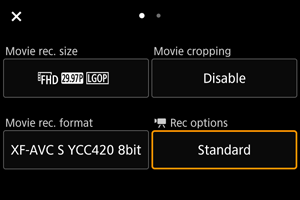
- Drehen Sie das Wahlrad , um ein Element auszuwählen, und drücken Sie dann die Taste .
- Sie können auch Einstellungselemente auswählen, indem Sie auf oder vertikal oder horizontal drücken.
- Drehen Sie das Wahlrad
Wählen Sie eine Option aus.
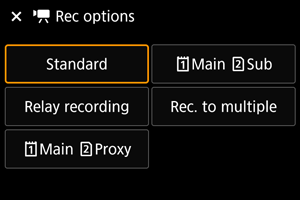
- Drehen Sie das Wahlrad , um eine Option auszuwählen.
- Sie können Optionen auch auswählen, indem Sie das Wahlrad oder drehen oder auf oder vertikal oder horizontal drücken.
Bildschirm für Detaileinstellungen
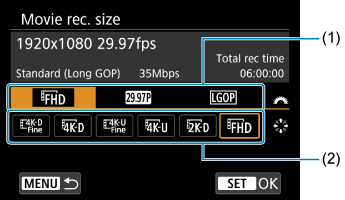
- Drehen Sie das Wahlrad , um eine Registerkarte (1) auszuwählen.
- Verwenden Sie , um die Einstellung (2) zu ändern.
- Drücken Sie , um Ihre Auswahl zu bestätigen, und kehren Sie in Schritt 2 zum Bildschirm zurück.
- Drehen Sie das Wahlrad
Legen Sie eine Option fest.
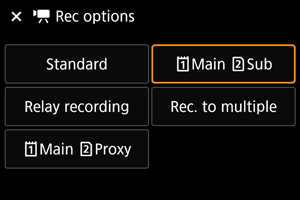
- Drücken Sie die Taste , um die Einstellung festzulegen.
- Drücken Sie die Taste
Verlassen Sie die Einstellung.
- Drücken Sie die Taste , um zur Aufnahme zurückzukehren.
- Drücken Sie die Taste